In an era where desk space is precious and minimalist aesthetics dominate, the mechanical keyboard landscape has witnessed a significant shift towards more compact designs. Among these, the 60 Mechanical Keyboard has emerged as a popular choice, captivating users with its streamlined form factor and surprising functionality. Far from being a mere novelty, these keyboards offer a unique blend of efficiency, portability, and customization that appeals to a diverse range of users, from avid gamers to dedicated typists and programming professionals. This comprehensive guide will delve into what makes a 60 mechanical keyboard stand out, exploring its core features, advantages, potential drawbacks, and how to choose the perfect one for your setup.
What Exactly is a 60 Mechanical Keyboard?
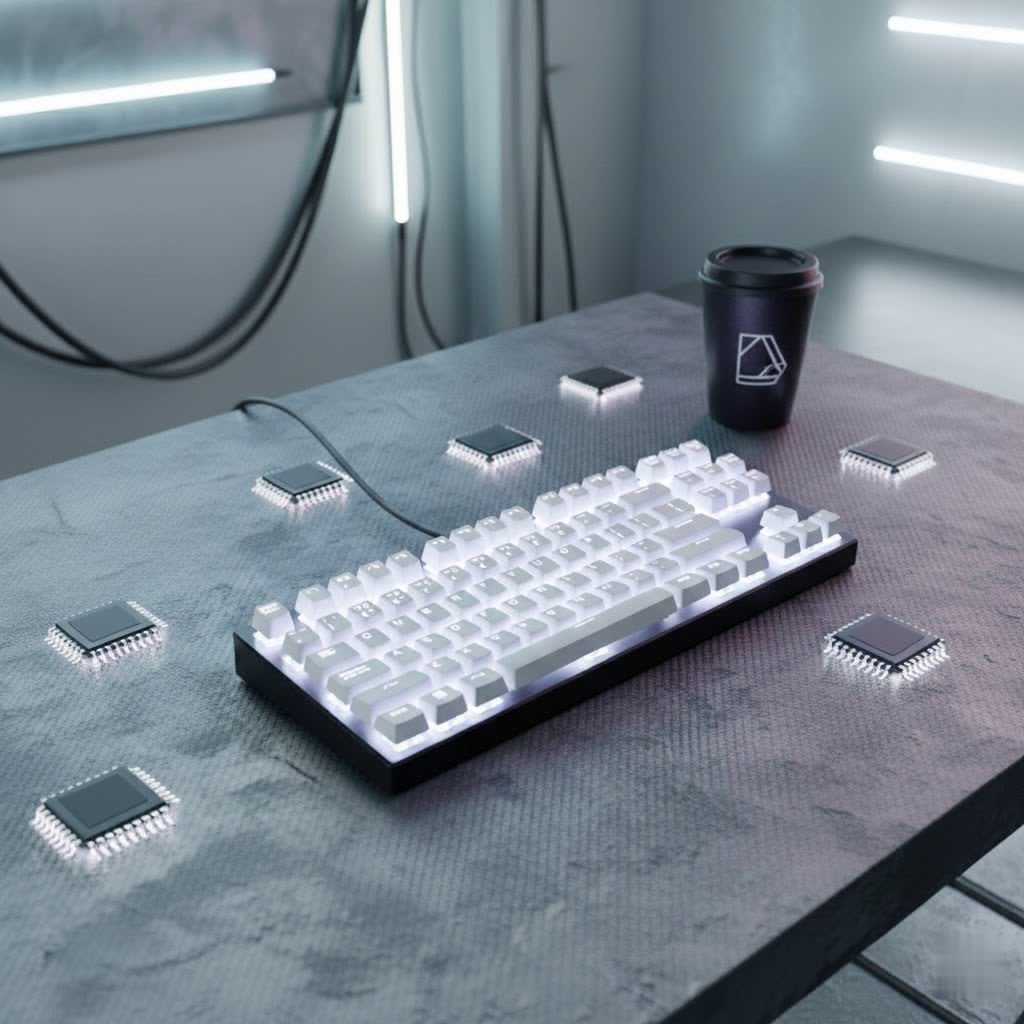
A 60 mechanical keyboard is defined by its compact layout, which omits approximately 40% of the keys found on a standard full-size keyboard. This reduction primarily involves the removal of the dedicated number pad, the function row (F1-F12), the arrow keys, and the navigation cluster (such as Home, End, Page Up/Down, Delete, and Insert). Typically, a 60% keyboard features around 60 to 61 keys, retaining only the alphanumeric keys and essential modifiers like Shift, Ctrl, and Alt.
Unlike larger keyboards, the absence of these dedicated keys on a 60% layout does not mean a loss of functionality. Instead, these secondary functions are accessed through a “function layer,” usually activated by holding down a special “Fn” key in combination with other keys. For example, pressing Fn + a designated key (often I, J, K, L) might serve as your arrow keys, while Fn + the number row could activate the F1-F12 keys. Many 60% keyboards support advanced programmability through firmware like QMK or VIA, allowing users to remap keys and create custom layers tailored to their specific workflow. This design philosophy prioritizes efficiency and a smaller physical footprint without sacrificing overall utility.
The Allure of Compactness: Pros of 60 Mechanical Keyboards
The growing popularity of 60 mechanical keyboards is rooted in several compelling advantages they offer:
- Space Efficiency: One of the most immediate benefits is the significant desk space saved. By eliminating the numpad and other less frequently used keys, a 60% keyboard frees up considerable real estate. This is particularly advantageous for gamers who require ample room for mouse movement, allowing for lower sensitivity settings and broader sweeps without bumping into their keyboard. It also contributes to a cleaner, more organized workspace.
- Superior Portability: Their compact and lightweight nature makes 60 mechanical keyboards exceptionally portable. They can easily fit into a backpack or laptop bag, making them ideal companions for commuters, students, and professionals who frequently travel or switch between different work environments.
- Minimalist Aesthetics: For those who appreciate a clean and uncluttered setup, the sleek and minimalist design of a 60% keyboard is a major draw. The absence of extraneous keys creates a visually appealing, focused input device that complements modern desk aesthetics.
- Ergonomic Benefits: The smaller form factor can also offer ergonomic advantages. With fewer keys, your hands and fingers remain closer to the home row, potentially reducing hand travel and strain during extended typing or gaming sessions. This compact positioning can lead to a more comfortable and natural posture.
- Customization Potential: The 60% layout is a favorite within the custom mechanical keyboard community. Its simplified design often means more options for case materials, PCB designs, and the ability to easily swap out switches and keycaps. This allows enthusiasts to personalize every aspect of their typing experience, from sound and feel to aesthetics.
Navigating the Trade-offs: Cons and Considerations
While 60 mechanical keyboards offer numerous benefits, it’s essential to consider their potential drawbacks to determine if this layout is right for you:
- The Learning Curve: The most significant hurdle for new users is adapting to the function layers. Remembering key combinations for arrow keys, function keys, and navigation commands can take time and effort. While many users eventually adapt and even find these layers intuitive, the initial adjustment period can be frustrating. Complex shortcuts that typically involve three keys on a full-size board might require four or more key presses on a 60%, such as Ctrl + Shift + Fn + (assigned Home key).
- Absence of Dedicated Keys: For certain workflows, the lack of dedicated keys can be a genuine limitation. Data entry professionals, accountants, or anyone heavily reliant on a number pad for calculations may find the 60% layout impractical. Similarly, programmers or content creators who frequently use function keys or specific navigation keys (like Home, End, or Delete) might experience a disruption in their workflow, even with programmable layers.
- No Dedicated Arrow Keys (by default): The omission of dedicated arrow keys is often the most contentious point. While they can be accessed via an Fn layer, this two-key press for a fundamental navigation action can slow down tasks that heavily involve text editing, spreadsheet navigation, or certain gaming genres. Some 60% keyboards offer clever solutions, such as tap functions where a key acts as one thing when tapped and another when held, or a “Minila” layout that slightly shifts keys to include dedicated arrows.
Essential Components of a 60 Mechanical Keyboard
Understanding the components that make up a mechanical keyboard is crucial for making an informed choice, especially with the customization options available in the 60% form factor.
Mechanical Switches
The “mechanical” in mechanical keyboard refers to the individual switches beneath each keycap, which register your keystrokes. These come in three primary categories:
- Linear Switches: These switches offer a smooth, consistent keystroke from top to bottom without any tactile bump or audible click. They are often favored by gamers for their rapid actuation and smooth feel, allowing for quick, unhindered presses. Examples: Cherry MX Red, Cherry MX Speed Silver, Gateron Red.
- Tactile Switches: Characterized by a noticeable “bump” in the middle of the keystroke, tactile switches provide feedback to indicate when a key press has registered, without an audible click. This makes them popular among typists who appreciate the feedback without the noise. Examples: Cherry MX Brown, Gateron Brown, Zealios V2.
- Clicky Switches: These switches combine a tactile bump with a distinct audible “click” sound when actuated. They offer the most feedback, which many typists find satisfying and reassuring. Examples: Cherry MX Blue, Gateron Blue, Kailh Box White.
|
Our Picks for the Best Mechanical Keyboard in 2026
As an Amazon Associate I earn from qualifying purchases.
|
||
| Num | Product | Action |
|---|---|---|
| 1 | SOLAKAKA A99 Pro Mechanical Keyboard with LCD Screen & Metal Knob, Wireless Gaming Keyboard with BT5.0/2.4GHz/USB-C, Hot Swappable Creamy Keyboard, Gasket Structure, RGB Backlit, for Win/Mac |

|
| 2 | AULA F99 Wireless Mechanical Keyboard,Tri-Mode BT5.0/2.4GHz/USB-C Hot Swappable Custom Keyboard,Pre-lubed Linear Switches,RGB Backlit Computer Gaming Keyboards for PC/Tablet/PS/Xbox |
|
| 3 | AULA F2088 Typewriter Style Mechanical Gaming Keyboard Wired,Blue Switches,Rainbow LED Backlit,Removable Wrist Rest,Media Control Knob,Retro Punk Round Keycaps,USB Wired Computer Keyboard |
|
| 4 | SteelSeries USB Apex 5 Hybrid Mechanical Gaming Keyboard – Per-Key RGB Illumination – Aircraft Grade Aluminum Alloy Frame – OLED Smart Display (Hybrid Blue Switch) |
|
| 5 | Logitech MX Mechanical Wireless Illuminated Performance Keyboard, Tactile Quiet Switches, Backlit Keys, Bluetooth, USB-C, macOS, Windows, Linux, iOS, Android, Metal, Graphite |
|
| 6 | AULA F75 Pro Wireless Mechanical Keyboard,75% Hot Swappable Custom Keyboard with Knob,RGB Backlit,Pre-lubed Reaper Switches,Side Printed PBT Keycaps,2.4GHz/USB-C/BT5.0 Mechanical Gaming Keyboards |
|
| 7 | Redragon Mechanical Gaming Keyboard Wired, 11 Programmable Backlit Modes, Hot-Swappable Red Switch, Anti-Ghosting, Double-Shot PBT Keycaps, Light Up Keyboard for PC Mac |
|
| 8 | Wood Pattern Mechanical Keyboard Wireless & Bluetooth Brown Keyboard – RGB Backlit Hot-Swappable PBT Keycaps Aesthetic Keyboard for Mac, Windows, iOS & Android – Ergonomic Gaming & Office Keyboard |
|
| 9 | GravaStar Mercury V75 HE Keyboard, 75% Hall‑Effect Magnetic Switch Gaming Keyboard, 8000 Hz Polling, 0.005RT, Wired USB-C, RGB Backlit, Adjustable Actuation, Semi‑Aluminum Chassis-Stealth Black |
|
| 10 | MageGee Portable 60% Mechanical Gaming Keyboard, MK-Box LED Backlit Compact 68 Keys Mini Wired Office Keyboard with Red Switch for Windows Laptop PC Mac - Black/Grey |
|
| Switch Type | Characteristics | Ideal For |
|---|---|---|
| Linear | Smooth, no bump, no click | Gaming, rapid key presses |
| Tactile | Tactile bump, no click | Typing, general use, feedback |
| Clicky | Tactile bump, audible click | Typing, strong feedback lovers |
Keycaps
Keycaps are the caps that cover the switches and are what your fingers interact with. Their material and profile significantly impact typing feel and durability:
- Materials:
- ABS (Acrylonitrile Butadiene Styrene): Common and affordable. ABS keycaps tend to be smoother, but can develop a shiny, greasy look over time (known as “ABS shine”) due to finger oils.
- PBT (Polybutylene Terephthalate): More durable and resistant to shine compared to ABS. PBT keycaps often have a slightly textured feel and are preferred by many enthusiasts for their longevity and premium feel.
- POM (Polyoxymethylene): Less common, known for a very smooth, slick texture and high durability.
- Profiles: The profile refers to the shape and height of the keycaps.
- OEM: The most common profile, found on many stock keyboards, with sculpted rows.
- Cherry: Similar to OEM but slightly lower in profile, often preferred for its comfortable, classic feel.
- DSA/XDA: Uniform profiles, meaning all keycaps have the same height and shape regardless of their row. This allows for flexible keycap placement.
- SA: Tall, spherical keycaps with a retro aesthetic and a distinct typing experience.
Choosing the right keycaps involves balancing aesthetics, feel, and durability according to your personal preferences.
Other Components
While switches and keycaps are primary, other components like the plate (which holds the switches), the PCB (Printed Circuit Board, where switches are soldered or hot-swapped), and the case (the outer housing) all contribute to the keyboard’s overall feel, sound, and build quality. Many 60% mechanical keyboards are “hot-swappable,” meaning you can change switches without soldering, offering unparalleled flexibility.
Choosing Your Perfect 60 Mechanical Keyboard
Selecting the ideal 60 mechanical keyboard requires careful consideration of your individual needs and preferences:
- Identify Your Primary Use:
- Gaming: Look for linear switches for speed, low latency, and potentially optical or magnetic switches (e.g., Wooting 60HE, Razer Huntsman Mini, SteelSeries Apex Pro Mini). The extra mouse space is a huge benefit.
- Typing/Office Work: Tactile or clicky switches provide feedback, which many find beneficial for accuracy and comfort. Consider PBT keycaps for durability.
- Programming: A balance of typing comfort and access to modifier keys is key. Programmability (QMK/VIA) is highly beneficial for custom function layers.
- Portability: Prioritize lightweight models with robust build quality and potentially wireless connectivity (Bluetooth).
- Set Your Budget: 60% keyboards range from budget-friendly options like the Royal Kludge RK61 or Anne Pro 2 to premium custom kits that can cost significantly more. Determine how much you’re willing to invest in features and build quality.
- Evaluate Key Factors:
- Switch Type: Based on your preference for feel and sound.
- Keycap Material and Profile: Consider PBT for durability or different profiles for ergonomic comfort.
- Build Quality: Metal cases offer more heft and premium feel, while plastic cases are lighter.
- Connectivity: Wired for reliability, Bluetooth for wireless convenience.
- Hot-swappability: Essential if you plan to experiment with different switches.
- Software/Firmware: For extensive key remapping and macro creation.
Maintenance and Care for Longevity
To ensure your 60 mechanical keyboard lasts for years, regular maintenance is essential:
- Regular Cleaning: Dust and debris can accumulate under keycaps, affecting switch performance. Use compressed air, a brush, and a microfiber cloth to keep your board clean.
- Keycap and Switch Care: Use a keycap puller to safely remove keycaps for thorough cleaning or replacement. If your keyboard is hot-swappable, use a switch puller to carefully remove switches without damaging the PCB.
- Avoid Spills: Keep liquids away from your keyboard. If a spill occurs, disconnect it immediately and allow it to dry completely.
- Proper Storage: When not in use, especially during travel, consider a protective case to prevent damage.
Conclusion
The 60 mechanical keyboard is more than just a smaller version of a traditional keyboard; it’s a statement of efficiency, aesthetics, and personalized control. While the initial adaptation to its compact layout and function layers might present a slight learning curve, the benefits of increased desk space, superior portability, and extensive customization often outweigh these challenges for many users. Whether you’re a competitive gamer seeking maximum mouse room, a minimalist typist craving a clean setup, or a programmer looking for a highly programmable tool, a 60 mechanical keyboard offers a powerful and rewarding experience. Embrace the compact revolution and discover how this small yet mighty device can transform your interaction with your computer.
Are you ready to condense your setup and unleash the full potential of a 60 mechanical keyboard?
Frequently Asked Questions
Are 60 mechanical keyboards good for gaming?
Yes, 60 mechanical keyboards are highly favored by many gamers. Their compact size frees up significant desk space, allowing for wider and more fluid mouse movements, which is crucial for competitive gaming. Many models also offer features like fast optical or magnetic switches and customizable layouts tailored for gaming performance.
Can you use a 60 keyboard for work or programming?
Absolutely. While the absence of a dedicated number pad and function row requires adapting to function layers, many professionals, especially programmers, find 60% keyboards efficient. The keys being closer together can improve ergonomics, and advanced programmability allows users to create custom layouts and macros perfectly suited for their specific work tasks.
How do I use arrow keys on a 60 keyboard?
On most 60 mechanical keyboards, arrow keys are accessed through a function layer. This typically involves holding down the “Fn” key (usually located on the bottom right row) and pressing a combination of other keys, often I, J, K, and L, or sometimes the Right Shift, Fn, Ctrl, and Alt keys. Many programmable boards allow you to customize these assignments.
What’s the difference between 60% and 65% keyboards?
A 60% keyboard removes the numpad, function row, arrow keys, and navigation cluster. A 65% keyboard retains the core 60% layout but adds a dedicated arrow key cluster and usually a few extra navigation keys (like Delete or Page Up/Down) on the right side. This makes 65% boards slightly larger but offers immediate access to arrow keys without using an Fn layer.
