For programmers, the keyboard isn’t just a peripheral; it’s an extension of their mind, translating complex thoughts into functional code. A mechanical keyboard, with its distinct feel and robust build, can transform long hours of coding into a satisfying and efficient experience. But with a dizzying array of options, finding the perfect one can feel like navigating a maze. This comprehensive guide will demystify the world of mechanical keyboards, equipping you with the knowledge to select the ideal coding companion that boosts your productivity and comfort.
What Exactly is a Mechanical Keyboard?
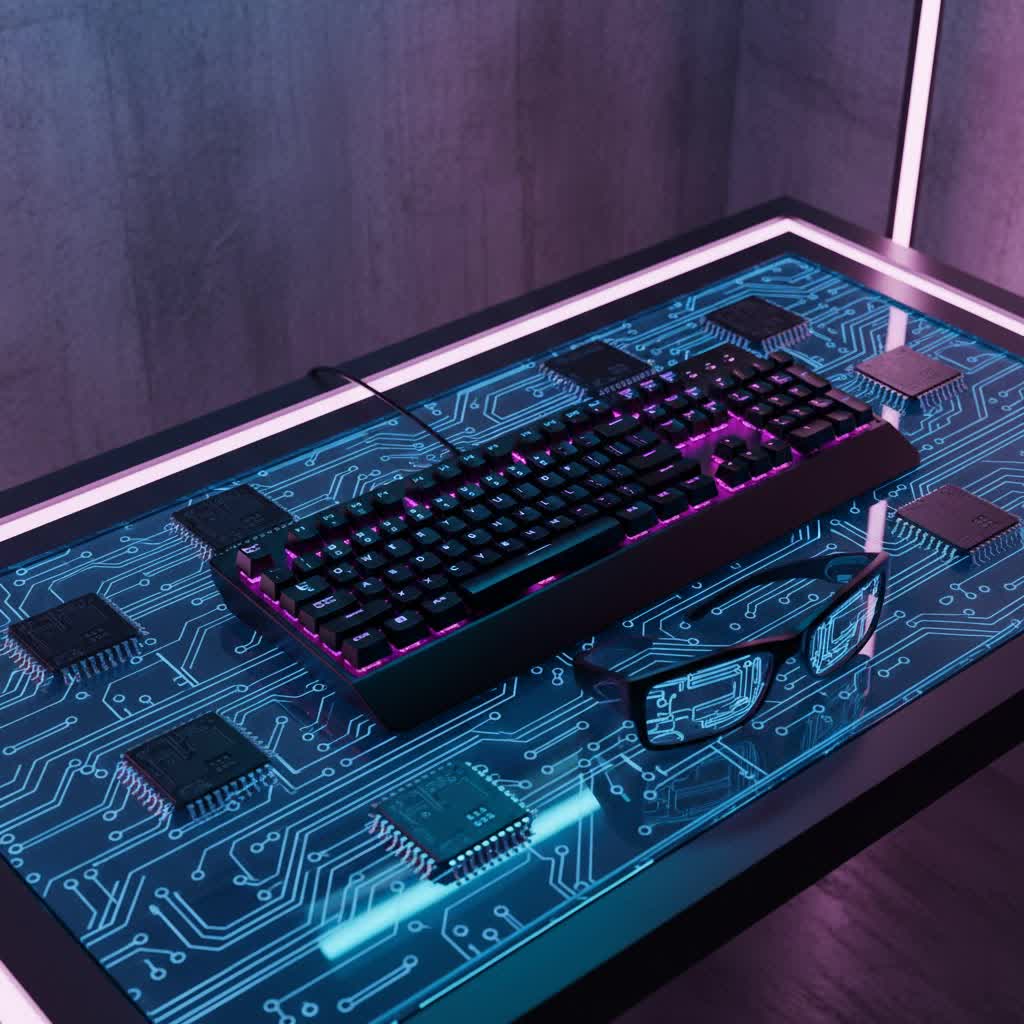
A mechanical keyboard is a high-performance keyboard that uses individual mechanical switches under each keycap, unlike the rubber dome membranes found in standard keyboards. This fundamental difference gives mechanical keyboards their unique characteristics, including superior tactile feedback, audible clicks, greater durability, and consistent keypresses.
The journey of the mechanical keyboard dates back to the early days of computing, gaining prominence in the 1970s and 80s for its reliability and typing comfort. While membrane keyboards took over for their lower cost, mechanical keyboards experienced a resurgence due to enthusiasts and professionals seeking a more premium and customizable typing experience.
Key components of a mechanical keyboard include:
- Switches: The heart of the keyboard, determining the feel and sound of each keypress.
- Keycaps: The plastic caps you press, which cover the switches and define the aesthetic.
- Plate: A metal or plastic layer that sits between the PCB and switches, providing structural support and influencing typing feel.
- PCB (Printed Circuit Board): The electronic board that registers keypresses.
- Case: The outer housing of the keyboard, contributing to its overall build quality and acoustics.
Popular Switch Types: Finding Your Typing Rhythm
The switch beneath each key is the most critical factor in a mechanical keyboard, directly impacting how typing feels and sounds. For coders, this choice can significantly affect accuracy, speed, and long-term comfort. Mechanical switches are broadly categorized into three types: Linear, Tactile, and Clicky.
Linear Switches
Linear switches offer a smooth, consistent keystroke from top to bottom without any tactile bump or audible click. This makes for a fluid and fast typing experience.
- Characteristics: No feedback bump, no audible click.
- Pros: Smooth, quiet (especially when lubricated), fast for rapid key presses, minimal finger fatigue.
- Cons: Lack of tactile feedback might lead to more accidental keypresses for some users; less “satisfying” for those who prefer feedback.
- Popular Types:
- Cherry MX Red: A common and popular linear switch, known for its light actuation force.
- Cherry MX Speed Silver: Even lighter and with a shorter actuation distance, designed for maximum speed.
- Gateron Red: Similar to Cherry MX Red, often praised for its smoothness.
- Best For: Programmers who value speed, smooth key travel, and a quiet working environment. Ideal for long coding sessions where minimal finger effort is desired.
|
Our Picks for the Best Mechanical Keyboard in 2026
As an Amazon Associate I earn from qualifying purchases.
|
||
| Num | Product | Action |
|---|---|---|
| 1 | AULA F75 Pro Wireless Mechanical Keyboard,75% Hot Swappable Custom Keyboard with Knob,RGB Backlit,Pre-lubed Reaper Switches,Side Printed PBT Keycaps,2.4GHz/USB-C/BT5.0 Mechanical Gaming Keyboards |

|
| 2 | MageGee Portable 60% Mechanical Gaming Keyboard, MK-Box LED Backlit Compact 68 Keys Mini Wired Office Keyboard with Red Switch for Windows Laptop PC Mac - Black/Grey |
|
| 3 | SteelSeries USB Apex 5 Hybrid Mechanical Gaming Keyboard – Per-Key RGB Illumination – Aircraft Grade Aluminum Alloy Frame – OLED Smart Display (Hybrid Blue Switch) |
|
| 4 | Redragon Mechanical Gaming Keyboard Wired, 11 Programmable Backlit Modes, Hot-Swappable Red Switch, Anti-Ghosting, Double-Shot PBT Keycaps, Light Up Keyboard for PC Mac |
|
| 5 | Logitech MX Mechanical Wireless Illuminated Performance Keyboard, Tactile Quiet Switches, Backlit Keys, Bluetooth, USB-C, macOS, Windows, Linux, iOS, Android, Metal, Graphite |
|
| 6 | AULA F2088 Typewriter Style Mechanical Gaming Keyboard Wired,Blue Switches,Rainbow LED Backlit,Removable Wrist Rest,Media Control Knob,Retro Punk Round Keycaps,USB Wired Computer Keyboard |
|
| 7 | SOLAKAKA A99 Pro Mechanical Keyboard with LCD Screen & Metal Knob, Wireless Gaming Keyboard with BT5.0/2.4GHz/USB-C, Hot Swappable Creamy Keyboard, Gasket Structure, RGB Backlit, for Win/Mac |
|
| 8 | GravaStar Mercury V75 HE Keyboard, 75% Hall‑Effect Magnetic Switch Gaming Keyboard, 8000 Hz Polling, 0.005RT, Wired USB-C, RGB Backlit, Adjustable Actuation, Semi‑Aluminum Chassis-Stealth Black |
|
| 9 | Wood Pattern Mechanical Keyboard Wireless & Bluetooth Brown Keyboard – RGB Backlit Hot-Swappable PBT Keycaps Aesthetic Keyboard for Mac, Windows, iOS & Android – Ergonomic Gaming & Office Keyboard |
|
| 10 | AULA F99 Wireless Mechanical Keyboard,Tri-Mode BT5.0/2.4GHz/USB-C Hot Swappable Custom Keyboard,Pre-lubed Linear Switches,RGB Backlit Computer Gaming Keyboards for PC/Tablet/PS/Xbox |
|
Tactile Switches
Tactile switches provide a noticeable “bump” in the middle of the keypress, indicating that the key has registered. This feedback helps prevent accidental keypresses without the loud sound of clicky switches.
- Characteristics: A distinct, non-audible bump at the actuation point.
- Pros: Excellent feedback for accuracy, good balance between typing speed and error reduction, generally quieter than clicky switches, making them suitable for shared workspaces.
- Cons: Can be perceived as less smooth than linear switches; the bump might not be pronounced enough for some users.
- Popular Types:
- Cherry MX Brown: The most well-known tactile switch, offering a gentle bump.
- Gateron Brown: Similar to Cherry MX Brown, often smoother and more affordable.
- Zealios V2: A premium tactile switch known for its sharp, pronounced bump.
- Cherry MX Clear: A heavier tactile switch with a more noticeable bump than Cherry MX Brown.
- Best For: Programmers who prioritize accuracy and appreciate physical feedback to confirm each keystroke, especially useful for debugging and complex syntax. They strike a great balance for most coding tasks.
Clicky Switches
Clicky switches offer both a tactile bump and an audible “click” sound when the key actuates. This combination provides satisfying feedback that many typists enjoy.
- Characteristics: Tactile bump and a distinct audible click.
- Pros: Highly satisfying auditory and tactile feedback, clear indication of key actuation.
- Cons: Can be very loud, making them unsuitable for office environments or shared spaces; some find the sound distracting during intense focus.
- Popular Types:
- Cherry MX Blue: The classic clicky switch, famous for its sharp click.
- Gateron Blue: Offers a similar clicky experience to Cherry MX Blue.
- Kailh Box White: Known for a crisper, cleaner click sound compared to Cherry MX Blue.
- Best For: Programmers who work in private spaces and derive pleasure from the sensory feedback of each keypress. If you love the sound and feel, these can be incredibly motivating.
Comparing the Switch Types
| Switch Type | Feel | Sound | Feedback | Best For |
|---|---|---|---|---|
| Linear | Smooth | Quiet | None | Speed, gaming, quiet offices |
| Tactile | Gentle bump | Moderate | Clear actuation | Accuracy, balanced typing, shared workspaces |
| Clicky | Pronounced bump | Loud click | Strong actuation | Sensory satisfaction, private workspaces |
Keycap Types: The Interface to Your Code
Keycaps are the interface between your fingers and the switches, significantly influencing the aesthetics, feel, and durability of your mechanical keyboard.
Keycap Materials
The material of your keycaps impacts their texture, longevity, and resistance to shine.
- ABS (Acrylonitrile Butadiene Styrene):
- Pros: Common, affordable, vibrant colors, smooth texture.
- Cons: Prone to developing a shiny, greasy look over time (known as “ABS shine”) due to finger oils, can feel thinner.
- PBT (Polybutylene Terephthalate):
- Pros: Highly durable, resistant to shine and oils, generally has a textured “sandy” feel, thicker and more robust, often produces a deeper sound profile.
- Cons: Can be more expensive, less color variety initially, more challenging to mold into complex shapes.
- POM (Polyoxymethylene):
- Pros: Known for a very smooth, almost slippery feel, highly durable, and excellent resistance to wear.
- Cons: Less common, limited color options.
For coding, PBT keycaps are often preferred for their durability and resistance to shine, ensuring a consistent feel even after thousands of lines of code.
Keycap Profiles
The “profile” refers to the shape and height of the keycaps across the keyboard. This ergonomic design can impact typing comfort and speed.
- Sculpted Profiles: These profiles have varying heights and angles for different rows, designed to conform to the natural curve of your fingers and reduce strain.
- OEM Profile: The most common profile on pre-built mechanical keyboards. It’s a sculpted profile with a medium height. Good for general use and comfortable for many users.
- Cherry Profile: Slightly shorter than OEM with a similar sculpted design. Highly popular among enthusiasts for its ergonomic comfort, low profile, and ease of reaching all keys, promoting faster, smoother typing with less finger travel.
- SA Profile: A tall, sculpted, spherical profile that gives a distinctly retro look and feel. It has deeply dished tops. Some find it comfortable for its finger-hugging shape, while others find the height requires more finger movement.
- Uniform Profiles: All keycaps across the rows have the same height and shape. This allows for flexibility in rearranging keys (e.g., Dvorak layouts).
- DSA Profile: A low-profile, uniform spherical keycap. Its consistent height makes it good for alternative layouts, but some find the low profile and small surface area less ergonomic for extended typing.
- XDA Profile: A low-profile, uniform keycap with a wide, flat top. It offers a larger surface area than DSA and a consistent feel across the board. Many typists appreciate its uniformity and smooth transitions.
Choosing the Right Keycap: For coders, Cherry or OEM profiles are often recommended for their ergonomic benefits and reduced finger fatigue during long sessions. PBT is typically favored over ABS for its durability and tactile feel.
Mechanical Keyboard Comparison Chart
To illustrate some popular choices for programmers, here’s a comparative look at a few highly-regarded mechanical keyboards. Keep in mind that “best” is subjective and depends on individual preferences and specific coding workflows.
| Model/Brand | Price Range | Switch Options (Common) | Keycap Material (Common) | Layouts | Special Features |
|---|---|---|---|---|---|
| Corsair K100 RGB | High | Cherry MX Speed/Optical | PBT | Full-size | Comprehensive software customization, control wheel, macros, USB passthrough, dedicated media keys. |
| Keychron Q Series (e.g., Q1 Max) | Mid-High | Gateron G Pro (Hot-swappable) | PBT | 60%, 65%, 75%, TKL, Full-size | QMK/VIA support, gasket-mounted design, sound-dampening foam, aluminum case, customizable. |
| Logitech MX Mechanical | Mid | Tactile Quiet (Brown-like), Linear, Clicky | ABS | Full-size, Mini | Low-profile, multi-device Bluetooth, smart backlighting, excellent for office environments. |
| Drop CTRL | Mid-High | Gateron, Cherry MX (Hot-swappable) | PBT | Tenkeyless (TKL) | Full aluminum build, QMK firmware, USB-C, RGB lighting, sturdy. |
| Das Keyboard 4 Pro | Mid-High | Cherry MX Brown/Blue | ABS | Full-size | Dedicated media controls, oversized volume knob, sturdy build, clean aesthetic. |
Note: Prices are approximate and can vary based on retailers and specific configurations.
Your Personalized Mechanical Keyboard Buying Guide
Selecting the perfect mechanical keyboard for coding involves understanding your personal needs and preferences.
-
Identify Your Usage Needs:
- Programming Only: Focus on comfort, accuracy, and features like programmable macros. Tactile or linear switches are often preferred.
- Programming + Gaming: You might look for hot-swappable switches to experiment, responsive linear switches for gaming, and robust build quality.
- Programming + Office: Quiet switches (linear or dampened tactile), compact layouts, and professional aesthetics will be key.
-
Determine Your Budget: Mechanical keyboards range from budget-friendly options ($50-$100) to premium custom builds ($200+). Set a realistic budget to narrow down choices.
-
Consider Key Factors:
- Layout:
- Full-size: Includes numpad, ideal for data entry.
- Tenkeyless (TKL): No numpad, compact but retains function row and arrow keys. Popular for coders.
- 75%/65%/60%: Increasingly compact, saving desk space. May require more reliance on function layers for missing keys.
- Ergonomic/Split: Designed to reduce wrist strain, excellent for long hours.
- Switch Type: Revisit the Linear, Tactile, and Clicky discussion. Consider a switch tester to try different types before committing.
- Keycap Material & Profile: PBT keycaps with Cherry or OEM profile are generally a safe and comfortable choice for coders.
- Build Quality: Look for sturdy cases (aluminum offers more rigidity and premium feel), good keycap materials, and stable stabilizers for larger keys.
- Programmability (QMK/VIA): For coders, custom keymaps, macros, and layers are invaluable for optimizing workflow and creating shortcuts. QMK/VIA compatibility allows for deep customization.
- Hot-swappable Sockets: Allow you to change switches without soldering, great for experimenting or replacing faulty switches.
- Layout:
-
Where to Buy: Reputable online retailers (Amazon, specialized mechanical keyboard stores like MechanicalKeyboards.com, Keychron.com, Drop.com) offer a wide selection. For a hands-on feel, some electronics stores or tech conventions might have display models.
Cleaning and Maintaining Your Mechanical Keyboard
Regular cleaning and maintenance are crucial to prolong the life of your mechanical keyboard and ensure consistent performance. Neglecting it can lead to sticky keys, reduced responsiveness, and general grime buildup.
Routine Cleaning (Weekly/Bi-weekly)
For quick tidying, follow these steps:
- Disconnect: Always unplug your keyboard to prevent accidental key presses or electrical issues.
- Remove Loose Debris: Turn the keyboard upside down and gently tap it to dislodge crumbs and larger debris.
- Air Blower/Brush: Use a silicone air blower (not compressed air cans, which can cause condensation) or a soft-bristled brush to clear dust and particles from between keycaps and around switches.
- Wipe Down: Use a clean, dry microfiber cloth to wipe the keycaps and case surface, removing fingerprints and light dust.
Deep Cleaning (Monthly/Quarterly)
For a more thorough clean:
- Disconnect: Unplug the keyboard.
- Remove Keycaps: Use a keycap puller to carefully remove all keycaps. It’s helpful to take a picture beforehand to remember their placement.
- Clean Under Keycaps:
- Vacuum/Air Blower: Use a small vacuum attachment or an air blower to remove dust, hair, and crumbs from the plate and PCB.
- Wipe Plate/PCB: Use cotton swabs lightly dampened with isopropyl alcohol (70% or higher) to clean around the switches and any visible grime on the plate. Be cautious not to use excessive liquid.
- Clean Keycaps:
- Soak: Place all removed keycaps in a bowl of warm water with a few drops of mild dish soap. For stubborn stains, a 1:1 mixture of isopropyl alcohol and water can be used.
- Scrub: Gently scrub each keycap with a soft brush or an old toothbrush.
- Rinse and Dry: Rinse thoroughly with clean water and ensure they are completely dry before reattaching. Air dry for several hours or overnight.
- Clean Case: Wipe the keyboard’s case with a microfiber cloth lightly dampened with isopropyl alcohol.
- Reassemble: Carefully place the dry keycaps back onto the switches.
Important Maintenance Tips:
- Avoid Harsh Chemicals: Do not use abrasive cleaners or strong solvents as they can damage keycap legends or the keyboard’s finish.
- Moisture Control: Never apply water directly to the PCB or switches. Always ensure components are completely dry before reassembly or plugging in.
- Stabilizer Lubrication (Advanced): Over time, stabilizers (on larger keys like spacebar, shift, enter) might become rattly. Lubricating them can significantly improve feel and sound, but this is an advanced step.
Conclusion
Choosing the right mechanical keyboard for coding is a deeply personal journey, one that can significantly enhance your comfort, efficiency, and overall enjoyment of programming. From the satisfying feedback of tactile switches to the ergonomic contours of sculpted keycaps, every element plays a role in crafting your ideal coding experience. By understanding the different components and considering your unique workflow, you can select a keyboard that truly feels like an extension of your own thought process.
What feature do you consider most essential in your perfect coding keyboard, and why?
