Step into the world of compact computing and you’ll quickly encounter the rising star: the mini mechanical keyboard. These keyboards offer a refreshing departure from bulky, full-sized models, packing a punch in performance and aesthetics without monopolizing your desk space. Whether you’re a gamer seeking maximum mouse real estate, a digital nomad prioritizing portability, or simply someone who appreciates a minimalist setup, a mini mechanical keyboard might be your perfect match. This comprehensive guide will equip you with all the knowledge you need to navigate the exciting realm of these compact powerhouses, ensuring you make an informed choice that elevates your typing and gaming experience.
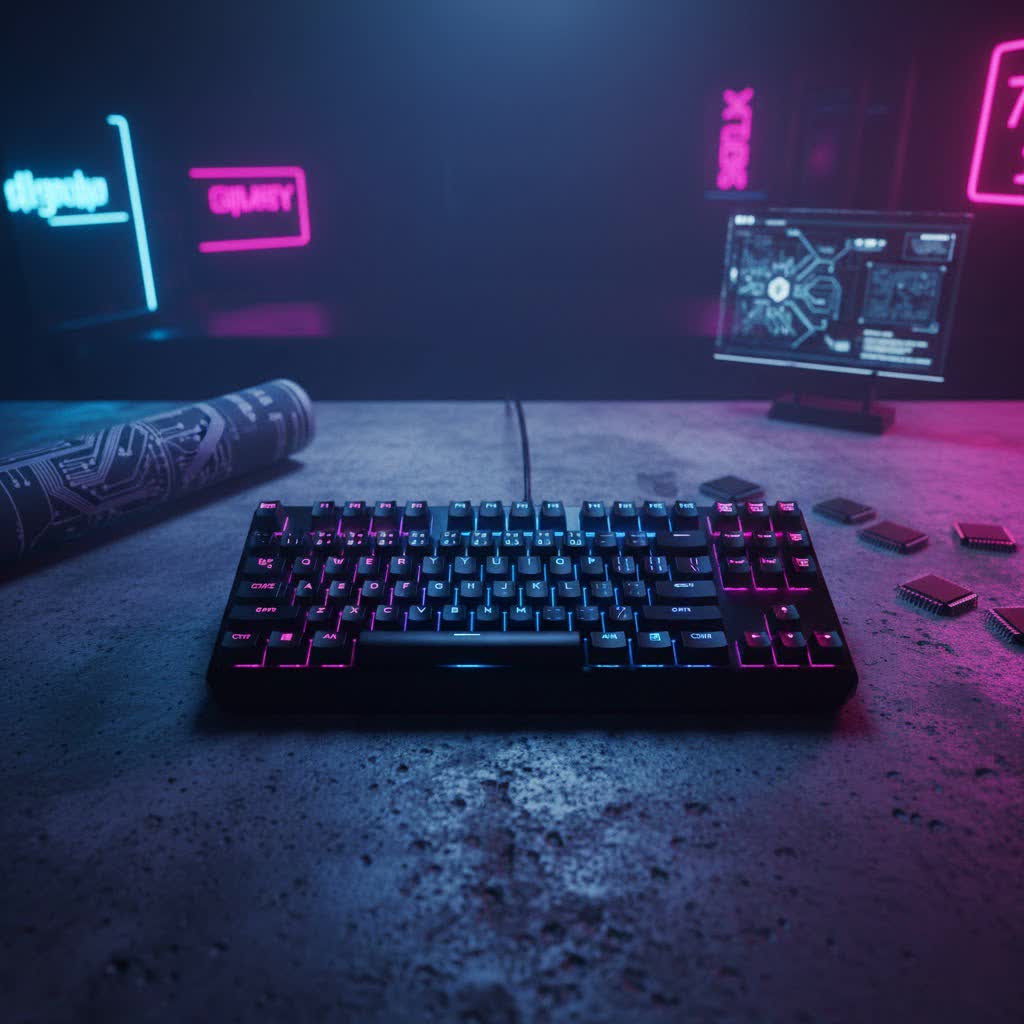
What is a Mini Mechanical Keyboard?
A mini mechanical keyboard is a compact version of a standard mechanical keyboard, intentionally designed to reduce its footprint by removing less frequently used keys. Unlike traditional membrane keyboards, which use a single rubber sheet under all keys, mechanical keyboards feature individual switches beneath each keycap. This fundamental difference provides a distinct tactile or audible feedback with every press, leading to a more satisfying and precise typing experience. The evolution of mechanical keyboards saw a natural progression towards smaller form factors as users sought greater efficiency and portability.
The primary components remain consistent with their larger counterparts: switches dictate the feel of each keystroke, keycaps are the surfaces your fingers interact with, and the plate and case provide structural integrity and housing. In a mini mechanical keyboard, these components are arranged in optimized layouts that prioritize core functionality while minimizing size.
Mini mechanical keyboards typically come in various popular layouts, each offering a different balance between compactness and functionality:
- 60% Layout: The most compact option, a 60% mechanical keyboard includes only the alphanumeric keys, modifiers, and a basic spacebar. It entirely omits the number pad, function row (F1-F12), arrow keys, and the navigation cluster (Home, End, Page Up, Page Down, Delete). All missing functions are accessed via “Fn” (function) key combinations, requiring users to adapt to a layered input system. This layout offers maximum desk space and extreme portability, making it a favorite among minimalist enthusiasts and gamers.
- 65% Layout: Building upon the 60% design, a 65% mechanical keyboard reintroduces dedicated arrow keys and typically a few essential navigation keys like Delete, Page Up, and Page Down. It still foregoes the number pad and function row. This layout strikes a popular balance, providing crucial navigation without significantly increasing the overall size, making it highly versatile for both productivity and gaming.
- 75% Layout: A 75% mechanical keyboard further expands functionality by integrating the function row (F1-F12) while maintaining a compact layout. These keys are often tightly clustered, eliminating the gaps seen in tenkeyless (TKL) keyboards. Dedicated arrow keys and a comprehensive navigation cluster are also typically present. The 75% layout is ideal for users who cannot compromise on function keys but still desire a smaller desk footprint and enhanced portability.
Advantages and Disadvantages of Mini Mechanical Keyboards
Embracing a mini mechanical keyboard comes with its own set of benefits and trade-offs. Understanding these can help you determine if a smaller form factor aligns with your workflow and preferences.
Advantages:
- Space-Saving Design: The most obvious benefit is the significant reduction in desk space. Removing the number pad or function row creates a cleaner, more minimalist setup, which is particularly beneficial for smaller workspaces or those who prefer an uncluttered environment.
- Enhanced Portability: Their compact size and often lighter weight make mini mechanical keyboards incredibly easy to transport. This is ideal for students, remote workers, or anyone who frequently changes their workspace.
- Improved Ergonomics and Mouse Space: Smaller keyboards allow you to keep your hands closer together, reducing strain on your shoulders and wrists. For gamers, the extra space on the desk directly translates to a larger range of motion for your mouse, which can be a critical advantage in fast-paced games.
- Aesthetic Appeal: Mini mechanical keyboards often possess a sleek, streamlined aesthetic that complements modern desk setups. Their minimalist design can be visually striking and highly customizable.
- Durable and Satisfying Typing Experience: Like all mechanical keyboards, mini versions offer superior durability and a more engaging typing feel compared to membrane alternatives. The individual switches provide consistent feedback, making long typing sessions more comfortable and enjoyable.
|
Our Picks for the Best Mechanical Keyboard in 2026
As an Amazon Associate I earn from qualifying purchases.
|
||
| Num | Product | Action |
|---|---|---|
| 1 | AULA F99 Wireless Mechanical Keyboard,Tri-Mode BT5.0/2.4GHz/USB-C Hot Swappable Custom Keyboard,Pre-lubed Linear Switches,RGB Backlit Computer Gaming Keyboards for PC/Tablet/PS/Xbox |

|
| 2 | Wood Pattern Mechanical Keyboard Wireless & Bluetooth Brown Keyboard – RGB Backlit Hot-Swappable PBT Keycaps Aesthetic Keyboard for Mac, Windows, iOS & Android – Ergonomic Gaming & Office Keyboard |
|
| 3 | Logitech MX Mechanical Wireless Illuminated Performance Keyboard, Tactile Quiet Switches, Backlit Keys, Bluetooth, USB-C, macOS, Windows, Linux, iOS, Android, Metal, Graphite |
|
| 4 | SOLAKAKA A99 Pro Mechanical Keyboard with LCD Screen & Metal Knob, Wireless Gaming Keyboard with BT5.0/2.4GHz/USB-C, Hot Swappable Creamy Keyboard, Gasket Structure, RGB Backlit, for Win/Mac |
|
| 5 | MageGee Portable 60% Mechanical Gaming Keyboard, MK-Box LED Backlit Compact 68 Keys Mini Wired Office Keyboard with Red Switch for Windows Laptop PC Mac - Black/Grey |
|
| 6 | AULA F75 Pro Wireless Mechanical Keyboard,75% Hot Swappable Custom Keyboard with Knob,RGB Backlit,Pre-lubed Reaper Switches,Side Printed PBT Keycaps,2.4GHz/USB-C/BT5.0 Mechanical Gaming Keyboards |
|
| 7 | AULA F2088 Typewriter Style Mechanical Gaming Keyboard Wired,Blue Switches,Rainbow LED Backlit,Removable Wrist Rest,Media Control Knob,Retro Punk Round Keycaps,USB Wired Computer Keyboard |
|
| 8 | SteelSeries USB Apex 5 Hybrid Mechanical Gaming Keyboard – Per-Key RGB Illumination – Aircraft Grade Aluminum Alloy Frame – OLED Smart Display (Hybrid Blue Switch) |
|
| 9 | GravaStar Mercury V75 HE Keyboard, 75% Hall‑Effect Magnetic Switch Gaming Keyboard, 8000 Hz Polling, 0.005RT, Wired USB-C, RGB Backlit, Adjustable Actuation, Semi‑Aluminum Chassis-Stealth Black |
|
| 10 | Redragon Mechanical Gaming Keyboard Wired, 11 Programmable Backlit Modes, Hot-Swappable Red Switch, Anti-Ghosting, Double-Shot PBT Keycaps, Light Up Keyboard for PC Mac |
|
Disadvantages:
- Learning Curve for Key Layouts: The absence of certain dedicated keys, especially on 60% layouts, means relying heavily on Fn key combinations. This requires a period of adjustment and memorization, which can initially slow down typing speed for users accustomed to full-sized keyboards.
- Missing Functionality: For tasks that heavily rely on a number pad (e.g., data entry) or dedicated function keys (e.g., specific software shortcuts), a mini mechanical keyboard might require external accessories or cumbersome key remapping.
- Limited Keycap Customization for Low-Profile Models: While mechanical keyboards are generally highly customizable, some low-profile mini mechanical keyboards may have fewer keycap options due to their unique switch designs.
- Battery Life in Wireless Low-Profile Keyboards: To maintain a slim profile, some wireless low-profile mini mechanical keyboards might feature smaller batteries, potentially leading to more frequent charging cycles compared to their larger counterparts.
- Price: Due to specialized components and niche appeal, some high-quality mini mechanical keyboards can be more expensive than entry-level full-sized mechanical keyboards.
“The shift to a mini mechanical keyboard isn’t just about saving space; it’s a deliberate choice to optimize your interaction with your computer, fostering a more focused and ergonomic environment.”
Choosing the Right Switch Type for Your Mini Mechanical Keyboard
The switch type is arguably the most crucial decision when selecting a mechanical keyboard, as it fundamentally dictates the feel, sound, and overall typing experience. Mini mechanical keyboards offer the same variety of switches as their full-sized counterparts, along with specialized low-profile options.
Linear Switches: Smooth and Consistent
- Characteristics: Linear switches provide a smooth, consistent keystroke from top to bottom with no tactile bump or audible click. They typically require a consistent force throughout the press.
- Popular Types: Cherry MX Red, known for its relatively light actuation force and smooth travel; Gateron Clear, even lighter, feeling almost weightless; Kailh Speed Silver, offering a short travel distance for rapid inputs.
- Ideal For: Fast-paced gaming where quick, repetitive key presses are essential, and silent work environments where minimal noise is preferred. Typists who enjoy a seamless, uninterrupted keystroke.
Tactile Switches: The Gentle “Bump”
- Characteristics: Tactile switches feature a noticeable “bump” in the middle of the keypress, providing feedback that a key actuation has occurred without an audible click.
- Popular Types: Cherry MX Brown, a classic choice known for its gentle, satisfying bump; Gateron Brown, often perceived as smoother than its Cherry counterpart; Zealios V2, a premium option with a more pronounced tactile bump. Many low-profile options, like Kailh Choc V2 Tactile Quiet, offer similar feedback.
- Ideal For: Typists who appreciate feedback on actuation without the noise of clicky switches, striking a balance between typing comfort and gaming responsiveness. They offer a good middle ground for many users.
Clicky Switches: Audible and Assertive
- Characteristics: Clicky switches combine a tactile bump with a distinct audible “click” sound at the actuation point. This provides clear auditory and physical feedback with each keypress.
- Popular Types: Cherry MX Blue, the iconic clicky switch with a crisp sound and feel; Gateron Blue, offering a slightly heavier feel and sound than Cherry Blues; Kailh Box White, known for a sharper, cleaner click. Low-profile versions like Kailh Choc V2 Clicky also exist.
- Ideal For: Typists who enjoy strong auditory confirmation of key presses and a very pronounced tactile feel. Less suitable for shared office spaces due to their distinct sound.
Low-Profile Switches: Designed for Slimness
Many mini mechanical keyboards, especially those emphasizing portability and a sleek aesthetic, utilize low-profile switches. These switches have a shorter travel distance and overall height compared to standard mechanical switches, resulting in a more laptop-like typing experience while retaining the benefits of mechanical actuation. Examples include various Kailh Choc switches. While offering speed and comfort, some users might find them to have less tactile feedback or fewer keycap customization options.
“The tactile feedback of a well-chosen switch on a mini mechanical keyboard transforms the mundane act of typing into a symphony of precision and satisfaction,” notes a seasoned keyboard enthusiast.
Understanding Keycaps: Materials and Profiles
Keycaps are the interface between your fingers and the mechanical switches, significantly influencing both the feel and appearance of your mini mechanical keyboard. Choosing the right material and profile is essential for comfort, durability, and aesthetics.
Keycap Materials
The two most common materials for keycaps are ABS and PBT.
- ABS (Acrylonitrile Butadiene Styrene):
- Advantages: More common, generally less expensive, smoother texture, allows for vibrant colors and shine-through legends for backlighting.
- Disadvantages: Prone to developing a greasy or shiny appearance (“ABS shine”) over time with heavy use, and legends can fade, especially if pad-printed.
- PBT (Polybutylene Terephthalate):
- Advantages: More durable and resistant to wear, less likely to develop shine, maintains a matte and slightly textured feel, thicker walls often produce a richer, deeper sound.
- Disadvantages: More expensive, can be harder to achieve certain vibrant colors or intricate designs compared to ABS, and fewer options for shine-through legends.
- POM (Polyoxymethylene): Less common, known for its slippery, smooth texture and high durability.
For a mini mechanical keyboard, PBT keycaps are often recommended for their longevity and resistance to shine, ensuring your compact setup looks pristine for longer.
Keycap Profiles
A keycap’s profile refers to its shape and height. Different profiles offer distinct ergonomic and aesthetic qualities.
- OEM Profile: This is the standard profile found on most pre-built keyboards. It features sculpted rows, meaning the height and angle of the keycaps vary across different rows to conform to the natural curve of your fingers. It’s a comfortable and familiar choice for general use.
- Cherry Profile: Similar to OEM but slightly shorter and often with a subtly different sculpting. Many enthusiasts prefer Cherry profile for its ergonomic comfort during long typing sessions and its lower overall height, which can contribute to faster typing.
- DSA / XDA Profiles: These are “uniform” profiles, meaning all keycaps across all rows have the same height and shape.
- DSA: Spherical tops, relatively low profile. Provides a unique feel and makes keycap rearrangement easy.
- XDA: Flatter, wider tops, also uniform. Offers a consistent feel and larger surface area, favored by some typists and for custom designs.
- SA / KSA Profiles: High-profile keycaps with distinctive tall, sculpted, or uniform rounded tops.
- SA: Very tall, often spherical tops. Offers a vintage, “typewriter” feel and can produce a deep, resonant sound.
- KSA: Inspired by SA but with tweaks for better handling and acoustics, providing a retro look with enhanced sound.
- Low Profile (LSA Profile): Specifically designed for keyboards with low-profile switches. These keycaps are slim and sit lower on the board, minimizing travel distance. They are perfect for users prioritizing portability, speed, and a sleek, minimalist aesthetic on their mini mechanical keyboard.
Choosing the right keycap profile for your mini mechanical keyboard is a personal journey, influencing both comfort and typing speed. Shorter profiles, like Cherry or low-profile variants, can reduce finger travel and promote faster input, while uniform profiles offer aesthetic consistency.
Top Mini Mechanical Keyboards: A Comparison Guide
When exploring mini mechanical keyboards, you’ll find a wide array of options catering to diverse needs, from gaming to professional productivity. While specific models constantly evolve, here’s a general comparison of common types and features you’ll encounter:
| Criteria | Gaming-Focused 60% Keyboards | Balanced 65% Keyboards | Feature-Rich 75% Keyboards |
|---|---|---|---|
| Price Range | Mid to High (often due to advanced gaming features) | Mid-range (excellent value for functionality) | Mid to High (more keys, potentially more features) |
| Typical Switches | Fast linear (e.g., Cherry MX Speed Silver, optical switches) | Tactile or Linear (e.g., Cherry MX Brown, Gateron Red) | Tactile, Linear, or Clicky (wide variety of options) |
| Keycap Material | Often PBT for durability, or thin ABS for low-profile | PBT for longevity and feel | PBT or high-quality ABS |
| Connectivity | Wired (for lowest latency), often wireless with dongle | Wired, Bluetooth, 2.4GHz wireless | Wired, Bluetooth, 2.4GHz wireless (often tri-mode) |
| Special Features | High polling rate (up to 8,000Hz), rapid trigger, programmable layers, compact for mouse space | Dedicated arrow keys, some nav keys, hot-swappable options | Function row, full nav cluster, often knobs/dials, hot-swappable, advanced software |
| User Rating | Excellent for competitive gamers, minimalists | Very high for general users, good for casual gamers | High for productivity users, heavy programmers |
This table illustrates the general trends and positioning of different mini mechanical keyboard layouts. Brands like Razer, Corsair, SteelSeries, Keychron, and NuPhy are prominent players, consistently innovating with features like hot-swappable PCBs, advanced RGB lighting, and robust wireless connectivity. Always consider your primary use case to find the perfect match.
How to Buy Your Perfect Mini Mechanical Keyboard
Choosing the perfect mini mechanical keyboard requires a thoughtful approach, aligning its features with your specific needs and preferences. Here’s a step-by-step guide to help you navigate the options:
-
Determine Your Primary Use Case:
- Gaming: If you’re a competitive gamer, prioritize a 60% or 65% layout for maximum mouse space and look for fast linear switches (or optical/magnetic switches for rapid trigger) and wired or low-latency wireless connectivity.
- Office/Productivity: For typing-heavy tasks, a 65% or 75% layout might be more suitable to retain essential navigation or function keys. Tactile switches are often preferred for their typing feedback. Consider features like multi-device Bluetooth if you switch between devices.
- Programming: Programmers might lean towards 75% layouts for easier access to function keys and a full navigation cluster, which are frequently used in coding environments.
- Portability/Travel: A 60% or 65% wireless model will be the most convenient for on-the-go use, valuing compactness and battery life.
-
Set Your Budget: Mini mechanical keyboards range widely in price, from budget-friendly options under $100 to premium enthusiast models costing several hundred dollars. Determine how much you’re willing to invest, keeping in mind that higher price points often correlate with better build quality, premium materials (like PBT keycaps or aluminum cases), advanced features, and greater customization potential.
-
Evaluate Key Factors:
- Layout: As discussed, decide between 60% (ultracompact, Fn layers), 65% (adds arrows, balanced), or 75% (adds F-row, functional compact).
- Switch Type: Consider linear for speed, tactile for feedback, or clicky for an audible experience. If testing is possible, try different switches to find your preference. Hot-swappable boards allow you to change switches later without soldering.
- Keycap Material & Profile: PBT offers durability and a matte finish, while ABS can be smoother but may shine over time. Choose a profile (OEM, Cherry, XDA, low profile) that feels comfortable for your typing style.
- Build Quality: Look for keyboards with sturdy cases (aluminum, high-quality plastic) and minimal flex. A good build contributes to both durability and typing feel.
- Connectivity: Decide between wired (lowest latency, no charging), Bluetooth (multi-device, convenient), or 2.4GHz wireless (low-latency wireless via dongle). Many modern keyboards offer hybrid or tri-mode connectivity.
- Customization: If you plan to personalize your keyboard, look for hot-swappable switches, standard keycap sizes for easy replacement, and software for remapping keys and customizing RGB lighting.
-
Research and Read Reviews: Consult reputable tech review sites and community forums. Look for reviews that align with your specific use case and mention the pros and cons relevant to your priorities.
-
Where to Buy: Purchase from authorized retailers or reputable online stores. Many specialized mechanical keyboard vendors offer a wider selection of unique models and customization parts.
“Choosing a mini mechanical keyboard is about more than just size; it’s about curating an ergonomic and efficient ecosystem that enhances every keystroke,” says an expert in peripheral design.
Cleaning and Maintenance for Your Mini Mechanical Keyboard
To ensure your mini mechanical keyboard performs optimally and maintains its aesthetic appeal for years to come, regular cleaning and proper maintenance are essential. Dust, crumbs, and skin oils can accumulate, affecting key feel and potentially leading to malfunctions.
Essential Cleaning Supplies:
- Keycap puller
- Compressed air or a small vacuum cleaner (low setting)
- Soft brush (e.g., clean paintbrush, makeup brush, or dedicated keyboard brush)
- Cotton swabs or microfiber cloth
- Isopropyl alcohol (70% or higher)
- Small bowl (for soaking keycaps)
- Mild dish soap
Step-by-Step Cleaning Process:
- Unplug Your Keyboard: Always disconnect your keyboard from your computer before beginning any cleaning to prevent accidental inputs or electrical issues.
- Take a Photo (Optional but Recommended): Especially for 60% and 65% layouts, a quick photo of your keycap arrangement can be a lifesaver when it’s time to put everything back together.
- Remove Keycaps: Use a keycap puller to gently remove each keycap. Avoid pulling at sharp angles, which could damage the switch stem. Place them in your small bowl.
- Clean Keycaps:
- Add warm water and a few drops of mild dish soap to the bowl with your keycaps.
- Gently agitate the keycaps by hand or with a soft brush to dislodge dirt and oils.
- For a deeper clean, let them soak for about 30 minutes.
- Rinse thoroughly under cool running water to remove all soap residue.
- Spread them out on a clean towel to air dry completely. Ensure they are bone-dry before reattaching.
- Clean the Keyboard Base:
- Remove Loose Debris: Turn the keyboard upside down and gently shake it to dislodge crumbs. Use compressed air to blow out dust and debris from between the switches. Alternatively, a small vacuum cleaner on a low setting can effectively suction out particles.
- Brush Around Switches: Use your soft brush to meticulously clear dust and dirt from around each switch housing. Be careful not to press down the switches forcefully, which could push debris further inside.
- Detail Cleaning: Dip a cotton swab or a corner of your microfiber cloth in isopropyl alcohol. Gently wipe around the edges of each switch and the exposed plate. Isopropyl alcohol evaporates quickly and is effective at removing grime without leaving residue. Change swabs frequently to avoid spreading dirt.
- Wipe the Case: Use a clean microfiber cloth, lightly dampened with water or isopropyl alcohol, to wipe down the keyboard’s exterior case.
- Reinstall Keycaps: Once all components are completely dry, carefully place each keycap back onto its corresponding switch stem, pressing down gently until it clicks into place. Refer to your earlier photo if you get stuck.
General Maintenance Tips:
- Regular Dusting: Use compressed air or a soft brush regularly (weekly or bi-weekly) to prevent dust buildup.
- Keep Food and Drinks Away: This is the golden rule for any keyboard to prevent spills and crumbs.
- Use a Desk Mat: A good quality desk mat can help protect your keyboard from surface scratches and provide a more stable typing platform.
- Store Properly: If transporting your mini mechanical keyboard, use a protective case or sleeve to prevent damage to keycaps and switches.
Conclusion
The mini mechanical keyboard revolution offers a compelling blend of ergonomic efficiency, minimalist aesthetics, and unparalleled typing satisfaction. From the ultra-compact 60% layout to the more functional 75%, there’s a compact mechanical keyboard designed to meet diverse needs, whether for competitive gaming, streamlined productivity, or simply a cleaner desk. By carefully considering switch types, keycap materials, and profiles, and committing to regular maintenance, you can ensure your mini mechanical keyboard remains a reliable and enjoyable companion for years to come.
Are you ready to embrace the compact revolution and discover how a smaller keyboard can lead to a bigger impact on your daily computing?
Frequently Asked Questions
Is a 60% keyboard good for coding?
A 60% mechanical keyboard can be suitable for coding, especially for minimalists who enjoy a clean workspace. However, the lack of dedicated function keys and arrow keys means relying on Fn key combinations, which can initially slow down workflows for complex programming tasks. Many programmers find 65% or 75% layouts more efficient due to easier access to essential keys.
Can you game effectively on a mini mechanical keyboard?
Absolutely! Many professional gamers prefer mini mechanical keyboards, particularly 60% and 65% layouts, because they free up significant desk space for expansive mouse movements, which is crucial in competitive gaming. With fast linear switches and high polling rates, these keyboards offer excellent performance and responsiveness.
Are mini mechanical keyboards louder than full-sized ones?
The sound level of a mini mechanical keyboard primarily depends on the chosen switch type, keycap material, and the keyboard’s internal construction, not its size. Clicky switches will be loud regardless of keyboard size, while silent linear or tactile switches will be quieter. Some compact designs might amplify sound slightly due to less material for dampening, but this varies greatly by model.
Is it hard to get used to a 60% or 65% mechanical keyboard?
There is typically a learning curve when transitioning to a 60% or 65% mechanical keyboard, as you’ll need to memorize Fn key combinations for functions that were once dedicated buttons (like arrow keys on a 60% or F-row keys on both). However, with consistent use, muscle memory develops quickly, and many users find the benefits of compactness outweigh the initial adjustment period.
What are the best keycap materials for a mini mechanical keyboard?
For a mini mechanical keyboard, PBT keycaps are generally considered superior due to their durability and resistance to “shine” over time, maintaining a pleasant matte texture. While ABS keycaps are more common and affordable, they can develop a glossy appearance with heavy use. The choice also impacts sound profile, with PBT often producing a deeper tone.
