For Apple enthusiasts, the sleek design and integrated ecosystem of Mac products are a major draw. However, when it comes to the humble keyboard, many find themselves yearning for a more tactile, satisfying, and customizable typing experience than Apple’s standard Magic Keyboard offers. If you’ve ever felt that click-clack craving or dreamt of a keyboard tailored precisely to your workflow, delving into the world of mechanical keyboards for your Mac could revolutionize your daily interactions.
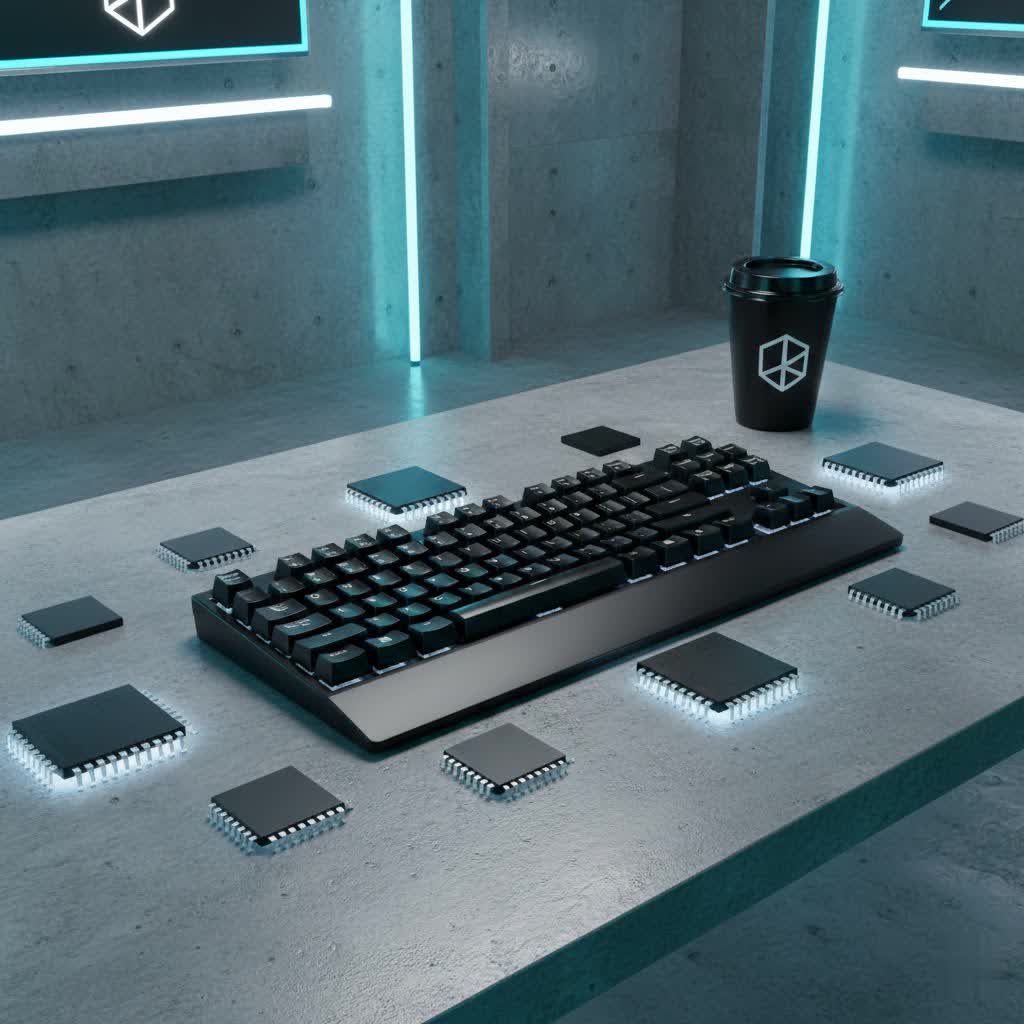
This comprehensive guide will demystify mechanical keyboards, highlighting why they are a superior choice for many Mac users. We’ll explore the essential components, discuss Mac compatibility, navigate the diverse range of switches and keycaps, and provide a detailed buying guide to help you find your perfect typing companion.
What is a Mechanical Keyboard?
A mechanical keyboard is a high-performance input device where each key has its own dedicated switch beneath it, unlike the rubber dome or scissor-switch mechanisms found in most standard keyboards, including Apple’s Magic Keyboard. This individual switch design provides distinct tactile feedback, audible cues, and a longer lifespan, offering a vastly different typing experience.
The lineage of mechanical keyboards stretches back decades. Interestingly, Apple itself produced revered mechanical keyboards in its early days, such as the iconic Apple Extended Keyboard II, known for its robust build and satisfying feel. However, cost-cutting measures in the late 1990s and early 2000s led manufacturers, including Apple, to largely abandon mechanical designs in favor of cheaper membrane or scissor-switch alternatives. Today, mechanical keyboards have experienced a powerful resurgence, driven by enthusiasts seeking superior performance and customization.
The core components of a mechanical keyboard include:
- Switches: The heart of the keyboard, determining the feel and sound of each keystroke.
- Keycaps: The individual covers you press, impacting aesthetics and typing feel.
- Plate: A component within the keyboard that holds the switches in place, affecting acoustics and typing rigidity.
- Case: The outer housing of the keyboard, influencing its overall look, sound profile, and durability.
Why Choose a Mechanical Keyboard for Your Mac?
While Apple’s Magic Keyboard is undeniably elegant and offers seamless integration, it prioritizes a thin profile and minimalist aesthetic over typing experience for many users. Mechanical keyboards offer several compelling advantages:
- Superior Typing Feel and Feedback: The distinct “bump” or “click” of mechanical switches provides clear feedback with every press, leading to more accurate and enjoyable typing. This can reduce fatigue during long sessions and enhance overall productivity.
- Durability and Longevity: Mechanical switches are typically rated for 50-100 million keystrokes, significantly outlasting membrane keyboards. This makes them a long-term investment.
- Unparalleled Customization: From swapping out switches to changing keycaps and even remapping keys, mechanical keyboards offer a level of personalization simply not possible with stock Apple keyboards. You can fine-tune your keyboard’s feel, sound, and appearance to match your exact preferences.
- Addressing Magic Keyboard Limitations: Many users find the low travel and mushy feel of Apple’s scissor-switch keyboards unsatisfying. Mechanical alternatives provide a more robust and responsive typing action, often mitigating common issues like accidental key presses or a lack of tactile engagement.
Modern mechanical keyboards have also evolved to offer excellent compatibility with macOS, ensuring that you don’t sacrifice functionality for a better typing experience.
Key Considerations for Mac Compatibility
Choosing a mechanical keyboard for your Apple setup requires attention to specific compatibility factors to ensure a smooth transition and full functionality.
- Mac Layout and Keycaps: The most immediate difference you’ll notice is the modifier keys. Mac keyboards use “Command” and “Option,” whereas Windows uses “Windows” and “Alt.” Many mechanical keyboards, particularly those marketed for Mac, include dedicated Mac keycaps or offer easily swappable ones. Even with a Windows layout, macOS allows you to remap modifier keys in System Settings, but dedicated Mac legends are often preferred for muscle memory.
- Connectivity Options:
- Bluetooth: Ideal for a clean, wireless desk setup, allowing you to connect to your Mac, iPad, or iPhone seamlessly. Look for Bluetooth 5.0 or newer for stable connections.
- Wired (USB-C): Offers the most reliable connection with zero latency, often preferred by gamers and professionals. Most modern mechanical keyboards use USB-C, which is standard on current Macs.
- 2.4 GHz Wireless: Utilizes a dedicated USB dongle for low-latency wireless performance, often bridging the gap between Bluetooth convenience and wired reliability.
- Software and Firmware Support: Many advanced mechanical keyboards support open-source firmware like QMK (Quantum Mechanical Keyboard) or VIA. These tools allow for extensive key remapping, creation of custom layers, and assignment of macOS-specific functions (like brightness and media controls) to any key, offering deep personalization beyond basic system settings.
- Aesthetics and Design: For many Apple users, the visual harmony of their workspace is paramount. A growing number of mechanical keyboards are designed with an aesthetic that complements Apple’s minimalist and premium design language, featuring aluminum cases, specific colorways, and thoughtful form factors.
Popular Mechanical Keyboard Brands for Mac Users
The market for Mac-compatible mechanical keyboards has exploded, offering excellent choices across various price points and feature sets.
- Keychron: Often considered the gateway brand for Mac users entering the mechanical keyboard hobby. Keychron offers a vast lineup (K, Q, V, Max series) with dedicated Mac layouts, hot-swappable switches, and QMK/VIA support, providing excellent value and customization. Their “Q” series, with its aluminum build, is particularly popular.
- NuPhy: Known for its low-profile mechanical keyboards (Air series) that are incredibly slim and often come with Mac-specific keycaps and native macOS function keys. They offer a comfortable typing experience for those who prefer a flatter keyboard while still enjoying mechanical switches.
- Satechi: The SM1 Slim Mechanical Backlit Bluetooth Keyboard is praised for its premium build and aesthetics that closely match Apple’s design, making it a strong alternative to the Magic Keyboard.
- Logitech: With options like the MX Mechanical series, Logitech provides cross-platform functionality with robust software. While not always primarily Mac-focused, their quality and multi-device connectivity make them viable contenders.
- Das Keyboard: The Professional 4 for Mac is a long-standing favorite, offering a robust, full-size mechanical keyboard with Cherry MX switches and a design geared for productivity.
- Durgod, Kemove, Epomaker, and Yunzii: These brands also offer various Mac-compatible models, often featuring hot-swappability, diverse switch options, and competitive pricing, catering to users looking for specific layouts or aesthetics.
Understanding Mechanical Switches
The switch beneath each key is the most critical component determining a mechanical keyboard’s feel and sound. They typically fall into three main categories:
Linear Switches
- Characteristics: Smooth, consistent keystroke from top to bottom, with no tactile bump or audible click.
- Common Types: Cherry MX Red, Gateron Red, Cherry MX Speed Silver.
- Pros: Fast actuation, quiet operation (especially with lubing), preferred by many gamers for quick, uninterrupted presses.
- Cons: Lack of tactile feedback can lead to accidental presses or bottoming out forcefully.
- Best For: Fast-paced gaming, quiet office environments, or users who prefer a very smooth typing experience.
|
Our Picks for the Best Mechanical Keyboard in 2026
As an Amazon Associate I earn from qualifying purchases.
|
||
| Num | Product | Action |
|---|---|---|
| 1 | AULA F99 Wireless Mechanical Keyboard,Tri-Mode BT5.0/2.4GHz/USB-C Hot Swappable Custom Keyboard,Pre-lubed Linear Switches,RGB Backlit Computer Gaming Keyboards for PC/Tablet/PS/Xbox |

|
| 2 | Redragon Mechanical Gaming Keyboard Wired, 11 Programmable Backlit Modes, Hot-Swappable Red Switch, Anti-Ghosting, Double-Shot PBT Keycaps, Light Up Keyboard for PC Mac |
|
| 3 | AULA F75 Pro Wireless Mechanical Keyboard,75% Hot Swappable Custom Keyboard with Knob,RGB Backlit,Pre-lubed Reaper Switches,Side Printed PBT Keycaps,2.4GHz/USB-C/BT5.0 Mechanical Gaming Keyboards |
|
| 4 | GravaStar Mercury V75 HE Keyboard, 75% Hall‑Effect Magnetic Switch Gaming Keyboard, 8000 Hz Polling, 0.005RT, Wired USB-C, RGB Backlit, Adjustable Actuation, Semi‑Aluminum Chassis-Stealth Black |
|
| 5 | MageGee Portable 60% Mechanical Gaming Keyboard, MK-Box LED Backlit Compact 68 Keys Mini Wired Office Keyboard with Red Switch for Windows Laptop PC Mac - Black/Grey |
|
| 6 | SteelSeries USB Apex 5 Hybrid Mechanical Gaming Keyboard – Per-Key RGB Illumination – Aircraft Grade Aluminum Alloy Frame – OLED Smart Display (Hybrid Blue Switch) |
|
| 7 | Wood Pattern Mechanical Keyboard Wireless & Bluetooth Brown Keyboard – RGB Backlit Hot-Swappable PBT Keycaps Aesthetic Keyboard for Mac, Windows, iOS & Android – Ergonomic Gaming & Office Keyboard |
|
| 8 | Logitech MX Mechanical Wireless Illuminated Performance Keyboard, Tactile Quiet Switches, Backlit Keys, Bluetooth, USB-C, macOS, Windows, Linux, iOS, Android, Metal, Graphite |
|
| 9 | AULA F2088 Typewriter Style Mechanical Gaming Keyboard Wired,Blue Switches,Rainbow LED Backlit,Removable Wrist Rest,Media Control Knob,Retro Punk Round Keycaps,USB Wired Computer Keyboard |
|
| 10 | SOLAKAKA A99 Pro Mechanical Keyboard with LCD Screen & Metal Knob, Wireless Gaming Keyboard with BT5.0/2.4GHz/USB-C, Hot Swappable Creamy Keyboard, Gasket Structure, RGB Backlit, for Win/Mac |
|
Tactile Switches
- Characteristics: Feature a noticeable “bump” or resistance midway through the keystroke, providing tactile feedback without an audible click.
- Common Types: Cherry MX Brown, Gateron Brown, Zealios V2.
- Pros: Excellent for typing as the bump confirms actuation, allowing users to release the key without bottoming out. A good balance between typing comfort and gaming responsiveness.
- Cons: The tactile bump can be subtle on some switches (e.g., Cherry MX Brown), which might not be pronounced enough for all users.
- Best For: Writers, programmers, and general typists who value tactile feedback for accuracy and comfort.
Clicky Switches
- Characteristics: Produce a distinct audible “click” sound in addition to a tactile bump, creating a very satisfying and clear actuation point.
- Common Types: Cherry MX Blue, Gateron Blue, Kailh Box White.
- Pros: Highly satisfying auditory and tactile feedback, making typing feel deliberate and engaging.
- Cons: Very loud, which can be disruptive in shared office spaces or quiet environments.
- Best For: Typists who enjoy the pronounced feedback and don’t mind the noise, often popular for enthusiasts working from home.
| Switch Type | Feel | Sound | Ideal Use Cases |
|---|---|---|---|
| Linear | Smooth | Quiet | Gaming, fast typing, quiet offices |
| Tactile | Bumpy | Moderate | Typing, programming, balanced use |
| Clicky | Bumpy + Clicky | Loud | Enthusiastic typing, home use |
Choosing the right switch is a highly personal decision, often influenced by your typing style, environment, and preference for feedback.
Keycap Materials and Profiles
Beyond switches, keycaps significantly impact the look, feel, and durability of your mechanical keyboard.
Keycap Materials
- ABS (Acrylonitrile Butadiene Styrene): A common plastic used for keycaps.
- Pros: Smooth texture, vibrant colors, often thinner, making switches sound louder.
- Cons: Can develop an oily “shine” over time with heavy use, less durable than PBT.
- PBT (Polybutylene Terephthalate): A higher-quality plastic often preferred by enthusiasts.
- Pros: More durable, resistant to shine and wear, often has a slightly textured or “gritty” feel, which many prefer.
- Cons: Can be more expensive, less color variety than ABS initially (though this is changing).
- POM (Polyoxymethylene): Less common, offers a unique, smooth, and slightly waxy feel.
- Pros: Very durable and resistant to shine.
- Cons: Limited availability and color options.
For Mac users, PBT keycaps are often a great choice for their longevity and premium feel, especially if you’re looking for a keyboard that will withstand years of use.
Keycap Profiles
The “profile” refers to the shape and height of the keycaps.
- OEM Profile: The most common profile, typically found on many pre-built mechanical keyboards. Keys have a sculpted, angled top row that curves down to flatter bottom rows.
- Cherry Profile: Similar to OEM but slightly shorter and with a subtly different sculpting angle. Highly popular among enthusiasts for its comfortable and ergonomic feel.
- DSA Profile: Uniform height and shape across all keys, offering a flat, minimalist look. This allows keys to be placed anywhere without affecting ergonomics.
- SA Profile: A very tall, spherical profile with deep dishing. It provides a retro look and a distinct feel, often preferred by those seeking a vintage aesthetic.
Choosing a profile is largely based on personal preference and typing comfort. Cherry and OEM are excellent starting points for most users, while DSA and SA offer unique experiences for those looking to experiment.
Buying Guide: Selecting Your Perfect Mac Mechanical Keyboard
Finding the ideal mechanical keyboard for your Mac involves a blend of personal preference, practical needs, and budget. Here’s a structured approach to help you decide:
-
Identify Your Primary Use Case:
- Gaming: Look for linear switches (Red, Speed Silver) for fast actuation, robust software for macro programming, and wired connectivity for minimal latency.
- Office/Productivity: Tactile switches (Brown) are often ideal for typing accuracy. Consider quieter switches or silent versions if in a shared space. A layout with a numpad (full-size, 96%, 1800-compact) might be beneficial.
- Programming/Writing: Tactile (Brown, Clear) or even clicky (Blue) switches can enhance feedback. Full programmability (QMK/VIA) is valuable for custom shortcuts.
- Portability: Compact layouts (60%, 65%, 75%) and reliable Bluetooth connectivity are key for on-the-go use with MacBooks or iPads.
-
Determine Your Budget:
- Entry-Level ($50-$100): Brands like Keychron (K series, V series), Kemove, or some Epomaker models offer solid performance and Mac compatibility. You might get basic backlighting and hot-swappable switches.
- Mid-Range ($100-$200): Opens up to more premium options like Keychron Q series, NuPhy Air, or Logitech MX Mechanical. Expect better build quality (aluminum cases), more advanced features (QMK/VIA, improved stabilizers), and a wider selection of switches and keycaps.
- High-End ($200+): Custom keyboard kits, premium pre-built boards from specialty brands, or top-tier models from mainstream manufacturers. These offer the ultimate in build quality, sound, feel, and customization.
-
Choose Your Preferred Layout:
- Full-Size (104/108 keys): Includes a numpad and function row. Best for data entry or users who require all keys.
- Tenkeyless (TKL – 87 keys): No numpad, making it more compact and ergonomic by bringing your mouse closer. Still retains the function row.
- 75% Layout: Compresses the TKL by merging navigation keys, offering a smaller footprint while keeping the function row. Very popular among Mac users (e.g., Keychron Q1, NuPhy Air75).
- 65% Layout: Omits the function row and some navigation keys, providing a very compact yet functional layout with arrow keys.
- 60% Layout: The most compact, removing the function row, numpad, and most dedicated navigation keys. Functions are accessed via layers (Fn key combinations).
-
Select Your Switch Type: Refer to the “Understanding Mechanical Switches” section above. Consider if you prefer linear (smooth), tactile (bumpy), or clicky (bumpy and loud) feedback, and how much noise is acceptable in your environment. Many modern keyboards offer “hot-swappable” sockets, allowing you to change switches without soldering, which is excellent for experimentation.
-
Connectivity: Decide between a reliable wired connection, the flexibility of Bluetooth for multiple devices, or the low-latency 2.4 GHz wireless via a dongle.
-
Build Quality and Features: Look for solid construction (aluminum cases are often preferred for durability and sound), stable stabilizers (especially on larger keys like spacebar and shift), quality keycaps (PBT is a plus), and desired features like RGB backlighting or a programmable knob.
-
Reputable Retailers: Purchase from official brand websites or trusted electronics retailers to ensure authenticity and warranty support.
Maintenance and Customization Tips
Maintaining your mechanical keyboard ensures its longevity and keeps the typing experience pristine. Moreover, customization is a significant draw for many users.
Cleaning and Basic Maintenance
- Regular Dusting: Use a can of compressed air to blast away dust and crumbs from between the keycaps.
- Keycap Removal: Gently pull off keycaps using a keycap puller (a wire puller is safer than a plastic ring one) to clean underneath. You can wash PBT keycaps in warm soapy water, ensuring they are completely dry before reattaching.
- Surface Wipe: Use a microfiber cloth with a mild cleaner to wipe down the case and remaining surfaces.
- Deep Cleaning (Less Frequent): For a thorough clean, remove all keycaps, switches (if hot-swappable), and plates to clean the bare PCB and case.
Customization for Enhanced Experience
- Switch Lubing: Applying a thin layer of specialized lubricant to your switches can significantly improve their smoothness, reduce spring ping, and alter the sound profile, making them feel more premium. This is a common modification among enthusiasts.
- Keycap Swapping: Easily change the aesthetics of your keyboard. Many aftermarket keycap sets are available in various colors, materials, and profiles, including sets with Mac-specific legends.
- Firmware and Key Remapping: Leverage tools like QMK/VIA (if supported by your keyboard) to remap keys, create custom layers, and assign complex macros. This is especially useful for integrating macOS-specific shortcuts (like Mission Control, Launchpad, or custom AppleScript triggers) that might not be natively assigned to standard mechanical keyboard layouts. Software like Karabiner Elements for macOS can also help remap keys for keyboards without native QMK/VIA support.
- Stabilizer Tuning: Modding the stabilizers (found on larger keys) by lubing and clipping can eliminate rattle and greatly improve the feel and sound of keys like the spacebar, enter, and shift.
“The true magic of a mechanical keyboard for a Mac user isn’t just the superior feel; it’s the freedom to mold it into a personal extension of your digital self, a tool that truly understands your workflow.”
Conclusion
The journey into mechanical keyboards offers Mac users an unparalleled opportunity to elevate their typing experience. Moving beyond the standard Magic Keyboard, you can discover a world of tactile feedback, satisfying acoustics, and deep customization that transforms daily computing from a mundane task into an engaging interaction. Whether you prioritize silent typing, gaming performance, or the ultimate tactile feedback for writing, there’s a mechanical keyboard perfectly suited for your Apple ecosystem.
By understanding switch types, keycap materials, Mac compatibility, and the wealth of available brands, you’re now equipped to make an informed decision. Don’t settle for a generic typing experience; unlock the full potential of your Mac setup with a keyboard that feels as good as it looks.
What unique customization or feature are you most excited to explore in your next mechanical keyboard for Mac?
Frequently Asked Questions
Are Apple’s Magic Keyboards mechanical?
No, Apple’s Magic Keyboards utilize a scissor-switch mechanism. While offering a stable and low-profile keystroke, they lack the individual mechanical switches, longer key travel, and distinct tactile or audible feedback characteristic of true mechanical keyboards.
Can I use any mechanical keyboard with a Mac?
Yes, most mechanical keyboards are compatible with Mac computers via USB or Bluetooth. However, keyboards specifically designed for Mac often include dedicated Command and Option keycaps and may offer easier setup for macOS-specific function keys and remapping. Generic keyboards can still be used, but you might need to remap modifier keys in macOS settings.
What is the best mechanical keyboard for MacBook Pro users?
For MacBook Pro users, popular choices often include compact layouts (65%, 75%) and low-profile designs for portability and ergonomics. Brands like Keychron (Q series, K series, V series) and NuPhy (Air series) are highly recommended due to their excellent Mac compatibility, build quality, and switch options.
How do I remap keys on a mechanical keyboard for Mac?
You can remap basic modifier keys (Command, Option, Control) directly in macOS System Settings. For more advanced remapping, custom layers, and macros, keyboards with QMK/VIA firmware support are ideal. Alternatively, third-party macOS utilities like Karabiner Elements provide extensive key remapping capabilities for almost any keyboard.
Did Apple ever make mechanical keyboards?
Yes, Apple did produce mechanical keyboards in the past. Notable examples include the Apple Extended Keyboard and the Apple Extended Keyboard II, which were highly regarded for their robust mechanical switches and premium typing experience in the late 1980s and early 1990s. Apple transitioned away from mechanical designs due to cost and the push for thinner peripherals.
