In a world where desk space is a premium and aesthetics matter, the pursuit of the perfect workspace often leads to innovative solutions. If you’ve ever felt overwhelmed by the size of a traditional keyboard or desired a cleaner, more focused setup, then the 60% mechanical keyboard might be the game-changer you need. These compact powerhouses offer a unique blend of minimalist design, enhanced portability, and uncompromised typing performance, making them a favorite among enthusiasts, gamers, and professionals alike. This comprehensive guide will navigate you through everything you need to know about these pint-sized titans, helping you unlock their full potential and find the ideal companion for your digital adventures.
What is a 60% Mechanical Keyboard?
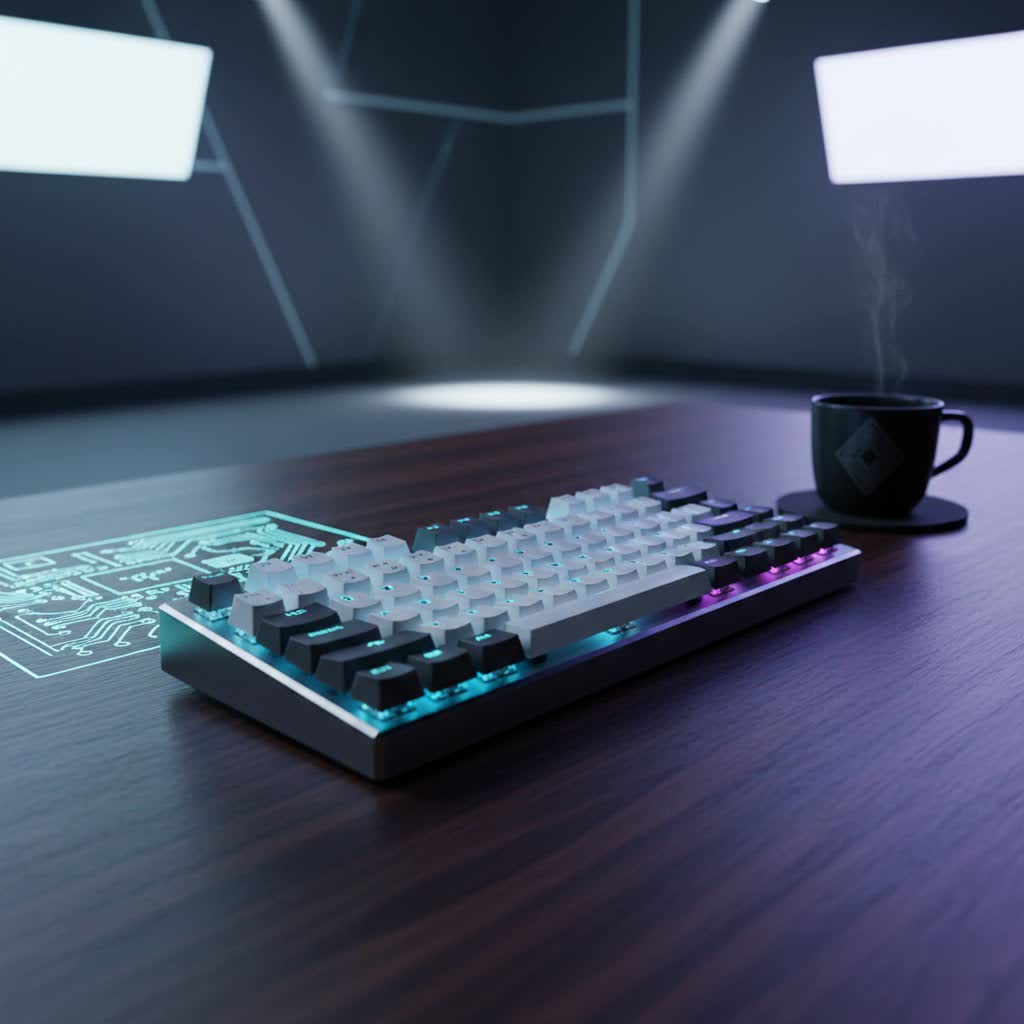
A 60% mechanical keyboard is a compact keyboard that typically retains only about 60% of the keys found on a standard full-sized keyboard. This minimalist design streamlines your desktop by omitting less frequently used sections such as the numeric keypad, the dedicated function row (F1-F12), and often the arrow keys and navigation cluster (like Home, End, Page Up/Down, and Insert). Instead of entirely removing these functionalities, 60% keyboards ingeniously integrate them into “function layers” accessed by holding down a special “Fn” key in combination with other keys.
The evolution of mechanical keyboards has seen a growing trend towards smaller form factors, driven by a desire for portability, ergonomics, and aesthetic simplicity. While a full-sized keyboard might offer every key imaginable, many users find themselves rarely touching certain sections. The 60% layout addresses this by focusing on the core alphanumeric and essential modifier keys, creating a more efficient and less cluttered typing experience.
At its heart, any mechanical keyboard, including a 60%, is composed of several key components:
- Switches: The individual mechanisms under each keycap that register presses.
- Keycaps: The plastic covers that your fingers interact with.
- Plate: A layer, usually metal, that the switches are mounted onto, providing stability.
- PCB (Printed Circuit Board): The electronic board that registers key presses.
- Case: The outer housing that holds all components together.
The Appeal of 60% Keyboards: Pros and Cons
The compact nature of 60% mechanical keyboards brings both significant advantages and a few considerations that users should be aware of. Understanding these trade-offs is crucial in determining if this form factor aligns with your needs.
Advantages
- Significant Space-Saving: The most immediate benefit is the amount of desk space you reclaim. Without the numpad or function row, a 60% keyboard takes up considerably less room, allowing for a cleaner setup and more space for your mouse, particularly beneficial for gamers who require wide sweeping mouse movements.
- Enhanced Portability: Their smaller footprint and lighter weight make 60% keyboards exceptionally easy to carry. Whether you’re commuting, traveling, or moving between workstations, these keyboards can easily tuck into a backpack or bag.
- Minimalist Aesthetic: For those who appreciate clean lines and an uncluttered look, a 60% keyboard offers an undeniably sleek and modern appearance. It contributes to a more focused and visually appealing workspace.
- Improved Ergonomics: By reducing the keyboard’s width, you can position your mouse closer to the center of your body. This minimizes the distance your hand has to travel between keyboard and mouse, potentially reducing strain on your shoulder and wrist during long sessions.
- High Customization Potential: Many 60% keyboards are designed with enthusiasts in mind, offering features like hot-swappable PCBs, which allow you to change switches without soldering, and a vast aftermarket of keycaps and cases for personalized aesthetics and typing feel.
|
Our Picks for the Best Mechanical Keyboard in 2026
As an Amazon Associate I earn from qualifying purchases.
|
||
| Num | Product | Action |
|---|---|---|
| 1 | GravaStar Mercury V75 HE Keyboard, 75% Hall‑Effect Magnetic Switch Gaming Keyboard, 8000 Hz Polling, 0.005RT, Wired USB-C, RGB Backlit, Adjustable Actuation, Semi‑Aluminum Chassis-Stealth Black |

|
| 2 | AULA F75 Pro Wireless Mechanical Keyboard,75% Hot Swappable Custom Keyboard with Knob,RGB Backlit,Pre-lubed Reaper Switches,Side Printed PBT Keycaps,2.4GHz/USB-C/BT5.0 Mechanical Gaming Keyboards |
|
| 3 | Redragon Mechanical Gaming Keyboard Wired, 11 Programmable Backlit Modes, Hot-Swappable Red Switch, Anti-Ghosting, Double-Shot PBT Keycaps, Light Up Keyboard for PC Mac |
|
| 4 | AULA F2088 Typewriter Style Mechanical Gaming Keyboard Wired,Blue Switches,Rainbow LED Backlit,Removable Wrist Rest,Media Control Knob,Retro Punk Round Keycaps,USB Wired Computer Keyboard |
|
| 5 | Wood Pattern Mechanical Keyboard Wireless & Bluetooth Brown Keyboard – RGB Backlit Hot-Swappable PBT Keycaps Aesthetic Keyboard for Mac, Windows, iOS & Android – Ergonomic Gaming & Office Keyboard |
|
| 6 | MageGee Portable 60% Mechanical Gaming Keyboard, MK-Box LED Backlit Compact 68 Keys Mini Wired Office Keyboard with Red Switch for Windows Laptop PC Mac - Black/Grey |
|
| 7 | AULA F99 Wireless Mechanical Keyboard,Tri-Mode BT5.0/2.4GHz/USB-C Hot Swappable Custom Keyboard,Pre-lubed Linear Switches,RGB Backlit Computer Gaming Keyboards for PC/Tablet/PS/Xbox |
|
| 8 | SteelSeries USB Apex 5 Hybrid Mechanical Gaming Keyboard – Per-Key RGB Illumination – Aircraft Grade Aluminum Alloy Frame – OLED Smart Display (Hybrid Blue Switch) |
|
| 9 | SOLAKAKA A99 Pro Mechanical Keyboard with LCD Screen & Metal Knob, Wireless Gaming Keyboard with BT5.0/2.4GHz/USB-C, Hot Swappable Creamy Keyboard, Gasket Structure, RGB Backlit, for Win/Mac |
|
| 10 | Logitech MX Mechanical Wireless Illuminated Performance Keyboard, Tactile Quiet Switches, Backlit Keys, Bluetooth, USB-C, macOS, Windows, Linux, iOS, Android, Metal, Graphite |
|
Disadvantages
- Learning Curve for Function Layers: The biggest adjustment for new users is learning the function layers. Accessing F-keys, arrow keys, and navigation commands requires holding down the “Fn” key, which can feel less intuitive initially. It takes time to build new muscle memory.
- Lack of Dedicated Keys: The absence of a dedicated numpad can significantly slow down data entry for tasks involving heavy numerical input. Programmers often rely on F-keys for debugging and navigation keys for efficient code traversal, which requires adapting to layered commands.
- Not for Every Workflow: While excellent for general typing, gaming (especially FPS), and minimalist setups, 60% keyboards may not be ideal for tasks that heavily depend on a numpad, constant F-key usage, or complex key combinations found in certain professional software or MMO games.
- Personal Preference: Ultimately, whether a 60% keyboard is “better” is highly subjective. Some users prefer the familiarity and immediate access of a full-sized layout, finding compact boards to feel cramped.
Diving Deep into Switches: Your Keyboard’s Soul
The type of mechanical switch underneath your keycaps dictates the feel, sound, and overall typing experience of your 60% keyboard. There are three primary categories: linear, tactile, and clicky, each offering distinct characteristics.
Switch Linear
Linear switches are characterized by a smooth, consistent keystroke from top to bottom, with no tactile bump or audible click.
- Characteristics: Smooth, fluid motion, often preferred for rapid presses.
- Examples: Cherry MX Red, Gateron Red, Cherry MX Speed Silver.
- Ideal for: Gamers who need quick, unobstructed key presses for fast-paced action. Fast typists who prefer a seamless downstroke also find them appealing.
Switch Tactile
Tactile switches provide a noticeable “bump” or resistance point during the keypress, signaling actuation without an audible click.
- Characteristics: A subtle feedback bump helps identify when a keypress has registered, enhancing typing accuracy.
- Examples: Cherry MX Brown, Gateron Brown, Zealios V2.
- Ideal for: Typists who appreciate feedback but prefer a quieter experience than clicky switches. They offer a good balance for both typing and casual gaming.
Switch Clicky
Clicky switches offer both a tactile bump and a distinct audible “click” sound upon actuation.
- Characteristics: Provides both tactile and auditory feedback, often described as satisfying and affirming.
- Examples: Cherry MX Blue, Gateron Blue, Kailh Box White.
- Ideal for: Typists who enjoy the aural confirmation of each keypress. The distinctive sound can be motivating but may not be suitable for shared office environments.
Other Notable Switch Types
Beyond the traditional three, innovations continue to emerge:
- Optical Switches: Found in keyboards like the Razer Huntsman Mini, these use a beam of light for actuation, often resulting in incredibly fast response times, making them popular for competitive gaming.
- Magnetic Switches: Featured in models like the SteelSeries Apex Pro Mini, these allow for adjustable actuation points, giving users granular control over sensitivity.
The Power of Hot-Swappable Boards
Many modern 60% mechanical keyboards come with hot-swappable PCBs. This feature allows you to easily remove and replace switches without any soldering. This is a huge advantage for customization, enabling you to experiment with different switch types to find your perfect feel, or simply to replace a faulty switch without needing specialized tools or skills.
Keycaps: The Touch and Feel
Keycaps are the interface between your fingers and the switches, and their material, profile, and legends significantly impact your typing experience and the keyboard’s durability.
Keycap Materials
- ABS (Acrylonitrile Butadiene Styrene):
- Characteristics: Common, generally smooth to the touch. Often thinner.
- Pros: Vibrant colors, can achieve shine-through for RGB lighting. More affordable.
- Cons: Tends to develop a “shine” or greasy look over time due to finger oils, and legends can wear off if not double-shot.
- PBT (Polybutylene Terephthalate):
- Characteristics: More durable and rigid than ABS, often has a slightly textured, matte finish.
- Pros: Highly resistant to shine and wear over time, legends are typically more enduring (especially double-shot PBT). Provides a deeper, more satisfying sound profile.
- Cons: Generally more expensive, colors can be less vibrant than ABS.
- POM (Polyoxymethylene): Less common in pre-built keyboards but known for its slick, smooth texture and high durability.
Keycap Profiles
The profile refers to the shape and height of the keycaps across the keyboard. Different profiles offer varying ergonomic experiences:
- OEM (Original Equipment Manufacturer): The most common profile, typically found on many pre-built keyboards. Keycaps are sculpted, meaning each row has a slightly different height and angle.
- Cherry: Similar to OEM but often slightly lower in height. Widely popular for its comfortable and ergonomic typing angle.
- DSA: A uniform, spherical profile, meaning all keycaps have the same height and shape, allowing for flexible keycap placement.
- SA: A tall, sculpted, spherical profile that gives a retro look and a unique, deep sound profile.
How to Choose Keycaps
When selecting keycaps, consider:
- Aesthetics: What look do you want for your keyboard?
- Feel: Do you prefer smooth or textured, tall or short?
- Durability: For longevity and resistance to shine, PBT is generally superior.
- Sound: Keycap material and thickness can influence the sound of your key presses.
Choosing Your Perfect 60% Mechanical Keyboard
With a multitude of options available, selecting the right 60% mechanical keyboard can seem daunting. Here’s a structured approach to guide your decision:
1. Identify Your Needs
- Gaming: Prioritize low-latency switches (linear, optical, magnetic), high polling rates, and robust software for macros. Look for brands like Razer, SteelSeries, HyperX.
- Office/Productivity: Consider tactile or quiet linear switches for comfortable, less disruptive typing. Programmable layers are crucial for customizing access to missing keys. Keychron, Royal Kludge, or Ducky often offer good options.
- Programming: Hot-swappable boards are excellent for experimenting with switches. Customization software (like QMK/VIA) is highly beneficial for remapping keys and creating macros for coding efficiency.
- Portability: Look for lightweight designs, robust build quality, and reliable wireless connectivity (Bluetooth, 2.4GHz).
2. Set Your Budget
60% mechanical keyboards range from budget-friendly options to premium enthusiast models.
- Entry-Level (Under $100): Brands like Royal Kludge (e.g., RK61) and Redragon often offer solid starter boards with good value, sometimes including hot-swappable switches and wireless connectivity.
- Mid-Range ($100-$200): You’ll find more premium switch options, better build materials (aluminum plates, PBT keycaps), and enhanced software features from brands like Ducky, Keychron, and Glorious (GMMK Compact).
- High-End (Over $200): Expect top-tier components, advanced features (magnetic switches, high-quality cases), extensive customization, and exceptional build quality from brands like SteelSeries, Kinesis, or custom keyboard kits.
3. Key Factors to Consider
| Feature | Description | Considerations |
|---|---|---|
| Layout Variation | While generally 60%, some models offer slight variations, such as dedicated arrow keys (e.g., “minila” layouts) or modified modifier key sizes. | Decide if dedicated arrow keys are a must or if you’re comfortable with a function layer. |
| Switch Type | Pre-installed switches (linear, tactile, clicky, optical, magnetic) or hot-swappable capability. | Choose based on sound and feel preference. Hot-swappable offers future flexibility and easier repair. |
| Keycap Material | ABS vs. PBT. | PBT offers superior durability and resistance to shine; ABS is more common and often cheaper. |
| Build Quality | Materials used for the case (plastic, aluminum) and plate. | Aluminum cases provide a more premium feel and better stability; plastic is lighter and more affordable. |
| Connectivity | Wired (USB-C), Bluetooth, 2.4GHz wireless dongle. | Wireless offers portability and a clean desk but introduces battery management. 2.4GHz often has lower latency than Bluetooth. |
| Software/Firmware | Customization options for key remapping, macros, and RGB lighting (e.g., QMK/VIA compatibility, proprietary software). | Advanced users benefit from open-source firmware for deep customization. |
Popular 60% Mechanical Keyboard Examples
- GMMK Compact: A highly customizable hot-swappable board, often recommended as a top pick for its versatility.
- Royal Kludge RK61: A popular budget-friendly wireless option with decent switches and connectivity.
- Razer Huntsman Mini: Known for its optical switches, offering incredibly fast actuation, making it a favorite for competitive gaming.
- Anne Pro 2: A well-regarded wireless 60% keyboard with a good balance of features and performance.
- Ducky One 3 Mini: Praised for its build quality, unique case designs, and PBT keycaps.
- HyperX Alloy Origins 60: Features durable aluminum construction and smooth switches for a premium feel.
- SteelSeries Apex Pro Mini: A high-end option featuring adjustable magnetic switches for ultimate gaming precision.
Cleaning and Maintenance for Longevity
Proper care can significantly extend the life and maintain the performance of your 60% mechanical keyboard.
Basic Cleaning
- Unplug the keyboard. Always disconnect your keyboard before cleaning.
- Remove keycaps: Use a keycap puller to carefully remove the keycaps.
- Dust removal: Use compressed air to blow away dust, crumbs, and debris from between the switches. A soft brush can help dislodge stubborn particles.
- Clean the case: Wipe the case with a microfiber cloth, slightly dampened with water or a mild cleaning solution.
- Clean keycaps: Soak keycaps in warm, soapy water for a few minutes, then scrub gently with a soft brush. Rinse thoroughly and ensure they are completely dry before reattaching. For PBT keycaps, a gentle wipe is usually sufficient.
Advanced Care
- Switch cleaning (for hot-swappable boards): If you notice inconsistencies, you can carefully remove switches and clean them with specialized switch cleaner or isopropyl alcohol.
- Lubrication: Enthusiasts often lubricate switches and stabilizers to improve smoothness and sound. This is an advanced mod and requires careful application.
- Protect during transport: When leveraging the portability of your 60% keyboard, use a protective sleeve or case to prevent damage from bumps or spills.
“A 60% mechanical keyboard is more than just a peripheral; it’s a statement. It forces you to rethink your interaction with your computer, streamlining your workflow and fostering a deeper connection with your input device.” – Alex Chen, Mechanical Keyboard Engineer at KBTrends
Conclusion
The 60% mechanical keyboard represents a compelling choice for anyone seeking a blend of compact design, robust performance, and aesthetic appeal. While it introduces a learning curve due to its reliance on function layers for certain commands, the benefits of reclaimed desk space, enhanced portability, and superior ergonomics are undeniable. With a vast array of switch types, keycap materials, and customization options available, finding a 60% mechanical keyboard that perfectly aligns with your personal preferences and computing needs is entirely within reach.
Are you ready to embrace the minimalist revolution and discover how a smaller keyboard can lead to a bigger impact on your productivity and enjoyment?
Frequently Asked Questions
Are 60% keyboards good for programming?
Yes, 60% keyboards can be excellent for programming, especially if customized. While they lack a dedicated F-row and navigation cluster, these functions are accessible via layers. Many programmers remap keys or use QMK/VIA firmware to create highly efficient layouts and macros, often finding the reduced hand travel beneficial for long coding sessions.
Are 60% keyboards good for gaming?
Absolutely, 60% keyboards are highly popular among gamers. Their compact size leaves ample room for wide mouse movements, which is crucial for competitive gaming, especially FPS titles. While some games might require remapping, many gamers prefer the focused layout and the speed offered by certain switch types like linear or optical switches.
How do you use arrow keys on a 60% keyboard?
On most 60% keyboards, arrow keys are accessed through a function layer. You typically hold down the “Fn” key (often located at the bottom right) and press a corresponding key, such as WASD, IJKL, or the right Shift, Alt, Ctrl, and / keys, which are often marked with arrow legends. Some specific 60% layouts, like “minila,” even incorporate dedicated arrow keys.
What’s the difference between ABS and PBT keycaps?
The primary differences lie in durability, texture, and feel. ABS keycaps are typically smoother, can develop a “shine” over time, and their legends might wear off. PBT keycaps are generally more durable, have a slightly textured, matte finish that resists shine, and offer a more robust feel and sound. PBT is often considered a premium material for keycaps.
