As a programmer, your keyboard is far more than just an input device; it’s an indispensable extension of your mind, a direct conduit between your thoughts and the digital realm. The countless hours spent coding, debugging, and architecting demand a tool that not only endures but also enhances your workflow, minimizes fatigue, and amplifies your precision. This comprehensive guide will navigate you through the world of mechanical keyboards, specifically tailored to unlock your full potential as a programmer. Say goodbye to mushy keys and welcome a typing experience that genuinely resonates with the rhythm of your code.
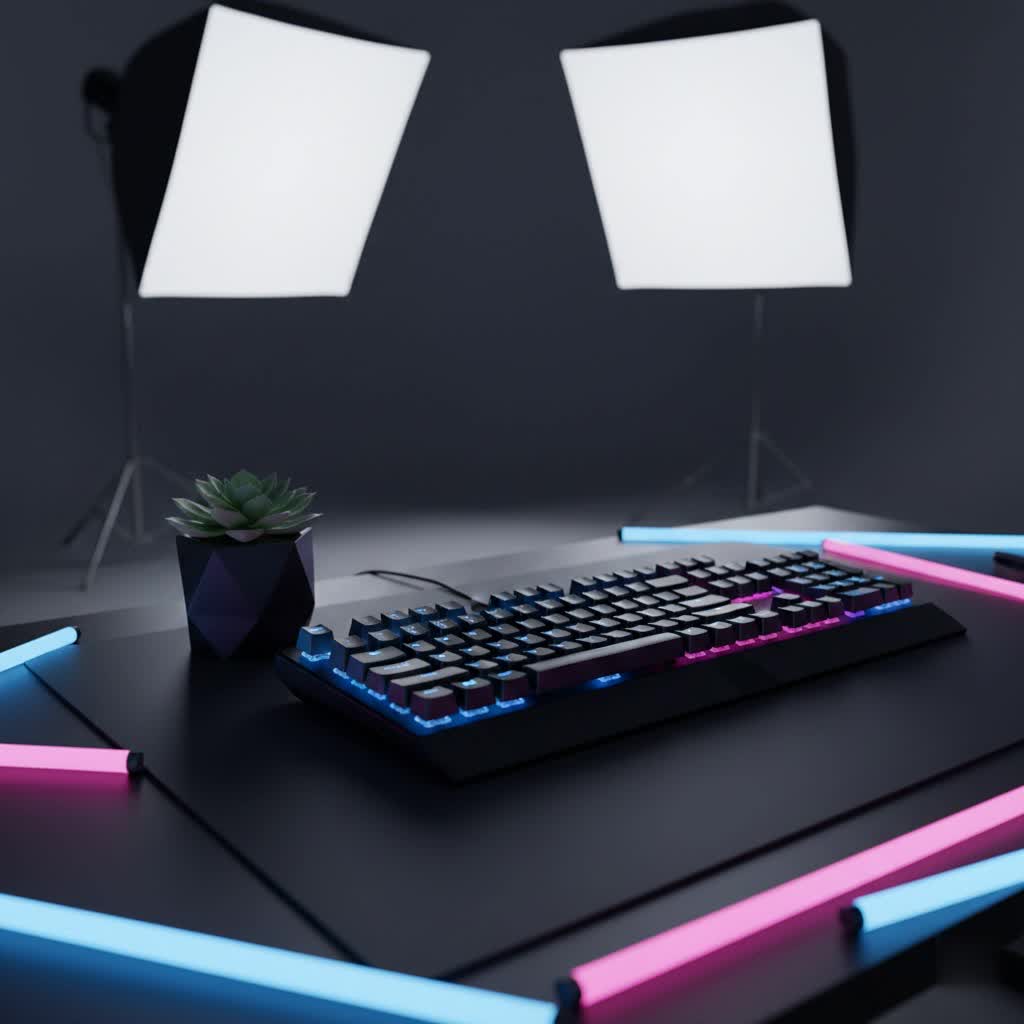
What is a Mechanical Keyboard?
At its core, a mechanical keyboard distinguishes itself from its common membrane counterparts by employing individual switches underneath each key. Unlike membrane keyboards, where a rubber dome registers keystrokes by pressing a circuit, mechanical keyboards feature a dedicated physical switch and spring for every key. This fundamental difference is where the magic begins, offering a level of tactile feedback, durability, and customization that membrane keyboards simply cannot match.
The journey of mechanical keyboards traces back decades, predating the ubiquity of modern computing. Early computers often relied on these robust input devices. However, with the push for cost-reduction and slimmer designs, membrane keyboards temporarily dominated the market. Today, programmers, gamers, and typing enthusiasts are rediscovering the unparalleled benefits of mechanical keyboards, leading to a vibrant resurgence and continuous innovation in design and technology.
A typical mechanical keyboard comprises several key components working in harmony:
- Switches: The heart of the keyboard, determining the feel and sound of each keypress.
- Keycaps: The covers you press, influencing aesthetics, texture, and ergonomics.
- Plate: A component that holds the switches in place, affecting the board’s rigidity and sound profile.
- PCB (Printed Circuit Board): The electronic brain that registers key presses and sends signals to your computer.
- Case: The outer housing that protects the internal components and defines the keyboard’s overall aesthetic.
Decoding Mechanical Keyboard Switches
The choice of switch is perhaps the most personal and impactful decision when selecting a mechanical keyboard for programming. Switches are broadly categorized into three types: linear, tactile, and clicky, each offering a distinct typing experience. Modern mechanical keyboards often feature hot-swappable sockets, allowing you to easily experiment with different switch types without soldering.
Linear Switches
Linear switches are characterized by a smooth, consistent keystroke from top to bottom, without any tactile bump or audible click. This makes them ideal for rapid, fluid typing.
- Characteristics: Smooth, quiet, no tactile bump.
- Pros: Fast actuation, excellent for rapid key presses, generally quieter, preferred by many for gaming and fast touch-typing.
- Cons: Lack of tactile feedback means it can be harder to know exactly when a key has actuated, potentially leading to bottoming out more often.
- Popular Types:
- Cherry MX Red: A popular choice for its light actuation force and smooth travel.
- Cherry MX Speed Silver: Even lighter and shorter actuation distance than Reds, designed for competitive speed.
- Gateron Red: A widely available alternative to Cherry MX Red, often praised for its smoothness.
- Best For: Programmers who prioritize speed and quiet operation, especially in shared workspaces. Those who already have a light typing style and don’t rely heavily on tactile feedback may find linear switches enhance their flow.
|
Our Picks for the Best Mechanical Keyboard in 2026
As an Amazon Associate I earn from qualifying purchases.
|
||
| Num | Product | Action |
|---|---|---|
| 1 | AULA F99 Wireless Mechanical Keyboard,Tri-Mode BT5.0/2.4GHz/USB-C Hot Swappable Custom Keyboard,Pre-lubed Linear Switches,RGB Backlit Computer Gaming Keyboards for PC/Tablet/PS/Xbox |

|
| 2 | Logitech MX Mechanical Wireless Illuminated Performance Keyboard, Tactile Quiet Switches, Backlit Keys, Bluetooth, USB-C, macOS, Windows, Linux, iOS, Android, Metal, Graphite |
|
| 3 | GravaStar Mercury V75 HE Keyboard, 75% Hall‑Effect Magnetic Switch Gaming Keyboard, 8000 Hz Polling, 0.005RT, Wired USB-C, RGB Backlit, Adjustable Actuation, Semi‑Aluminum Chassis-Stealth Black |
|
| 4 | Wood Pattern Mechanical Keyboard Wireless & Bluetooth Brown Keyboard – RGB Backlit Hot-Swappable PBT Keycaps Aesthetic Keyboard for Mac, Windows, iOS & Android – Ergonomic Gaming & Office Keyboard |
|
| 5 | AULA F75 Pro Wireless Mechanical Keyboard,75% Hot Swappable Custom Keyboard with Knob,RGB Backlit,Pre-lubed Reaper Switches,Side Printed PBT Keycaps,2.4GHz/USB-C/BT5.0 Mechanical Gaming Keyboards |
|
| 6 | SOLAKAKA A99 Pro Mechanical Keyboard with LCD Screen & Metal Knob, Wireless Gaming Keyboard with BT5.0/2.4GHz/USB-C, Hot Swappable Creamy Keyboard, Gasket Structure, RGB Backlit, for Win/Mac |
|
| 7 | AULA F2088 Typewriter Style Mechanical Gaming Keyboard Wired,Blue Switches,Rainbow LED Backlit,Removable Wrist Rest,Media Control Knob,Retro Punk Round Keycaps,USB Wired Computer Keyboard |
|
| 8 | Redragon Mechanical Gaming Keyboard Wired, 11 Programmable Backlit Modes, Hot-Swappable Red Switch, Anti-Ghosting, Double-Shot PBT Keycaps, Light Up Keyboard for PC Mac |
|
| 9 | SteelSeries USB Apex 5 Hybrid Mechanical Gaming Keyboard – Per-Key RGB Illumination – Aircraft Grade Aluminum Alloy Frame – OLED Smart Display (Hybrid Blue Switch) |
|
| 10 | MageGee Portable 60% Mechanical Gaming Keyboard, MK-Box LED Backlit Compact 68 Keys Mini Wired Office Keyboard with Red Switch for Windows Laptop PC Mac - Black/Grey |
|
Tactile Switches
Tactile switches provide a noticeable “bump” or resistance during the keystroke, indicating that the key has actuated. This feedback helps you confirm a keypress without necessarily pressing the key all the way down.
- Characteristics: A distinct bump during actuation, moderate sound, precise feedback.
- Pros: Clear actuation point reduces errors, comfortable for long typing sessions, a good balance between speed and accuracy. Many programmers find this feedback incredibly valuable.
- Cons: Can be slightly louder than linear switches, and the bump might not appeal to everyone.
- Popular Types:
- Cherry MX Brown: Often considered the “all-rounder,” offering a gentle tactile bump and moderate noise level, making it popular for both programming and office use.
- Gateron Brown: Similar to Cherry MX Brown but often smoother and more affordable.
- Zealios V2: A premium tactile switch known for its sharp, pronounced bump and smooth travel.
- Best For: Most programmers. The tactile bump provides excellent feedback, helping to prevent accidental key presses and reducing finger fatigue by allowing you to “float” above the actuation point.
Clicky Switches
Clicky switches offer both tactile feedback and an audible “click” sound with each keypress, providing a satisfying sensory experience.
- Characteristics: Tactile bump accompanied by a distinct, audible click.
- Pros: Extremely satisfying sound and feel for some users, clear indication of key actuation, can improve typing speed and accuracy for those who enjoy the feedback.
- Cons: Very loud, often unsuitable for shared office environments or quiet homes.
- Popular Types:
- Cherry MX Blue: The quintessential clicky switch, known for its distinct “click bar” mechanism.
- Gateron Blue: A popular clicky option, often with a slightly different sound profile than Cherry MX Blue.
- Kailh Box White: A favorite in the custom keyboard community for its crisp click and dust-proof stem.
- Best For: Programmers who work in private environments and enjoy the auditory and tactile confirmation of every keystroke. If you love a typewriter-esque experience and noise isn’t an issue, clicky switches can be incredibly rewarding.
Comparing Switch Types
| Feature | Linear Switches | Tactile Switches | Clicky Switches |
|---|---|---|---|
| Keystroke | Smooth, no bump | Noticeable tactile bump | Tactile bump + audible click |
| Sound Level | Quiet | Moderate | Loud |
| Feedback | Minimal | Distinct physical bump | Physical bump + audible click |
| Actuation | Consistent throughout | Clear point of actuation | Clear point of actuation + sound |
| Programming | Good for speed, light typists | Excellent for accuracy, feedback | Satisfying, but noisy |
Ultimately, the “best” switch for programming is highly personal. Many developers find tactile switches like Cherry MX Browns or Gateron Browns to be ideal, offering a good balance of feedback without excessive noise. However, some prefer the pure speed of linear switches, while others swear by the satisfying click of blues. If possible, trying a switch tester before committing to a full keyboard is highly recommended.
Exploring Keycap Types
Keycaps are the interface between your fingers and the switches, and their material, profile, and legends significantly impact both the feel and aesthetics of your mechanical keyboard.
Keycap Materials
The most common keycap materials are ABS and PBT, each with distinct properties.
- ABS (Acrylonitrile Butadiene Styrene):
- Pros: Generally smoother, vibrant colors, readily available in various designs, often thinner, allowing for better RGB shine-through.
- Cons: Prone to developing a shiny “greasy” look over time due to finger oils (known as “ABS shine”), less durable than PBT.
- Common Use: Many stock keyboards come with ABS keycaps.
- PBT (Polybutylene Terephthalate):
- Pros: Highly durable, resistant to “ABS shine,” unique matte and textured feel, thicker plastic often contributes to a more “thocky” sound profile.
- Cons: Can be more expensive, less color variety for some specific sets due to manufacturing process, legends can be less crisp if dye-sublimated.
- Common Use: Favored by enthusiasts for longevity and feel.
- POM (Polyoxymethylene):
- Pros: Very durable, smooth and slick feel, high resistance to wear and solvents.
- Cons: Less common, limited color options.
- Ceramic:
- Pros: Unique, cool-to-the-touch feel, extremely durable, premium aesthetic.
- Cons: Very expensive, less common, heavier feel, can be brittle if dropped.
Keycap Profiles
The profile refers to the shape and height of the keycaps, influencing ergonomics and typing comfort.
- OEM Profile:
- Description: The most common profile found on stock keyboards. Keys are sculpted, with varying heights and angles across rows.
- Pros: Familiarity, widely available.
- Cons: Can feel generic to some.
- Cherry Profile:
- Description: Similar to OEM but slightly shorter and with a subtly different sculpting. Often preferred by enthusiasts.
- Pros: Ergonomic, comfortable for touch-typing, sleek appearance, popular in the custom keyboard community.
- DSA Profile:
- Description: Uniform profile, meaning all keycaps have the same height and shape. Spherical tops.
- Pros: Allows for flexible keycap arrangements (e.g., Dvorak layouts), unique aesthetic.
- Cons: Can take getting used to due to uniform height, some find it less ergonomic for extended typing.
- SA Profile:
- Description: Tall, spherical, and highly sculpted profile, reminiscent of vintage typewriters.
- Pros: Distinctive retro aesthetic, satisfying deep sound, comfortable for some with larger hands.
- Cons: Very tall, can be challenging for those not accustomed to it, requires a good wrist rest.
Choosing the Right Keycaps
For programmers, PBT keycaps are generally recommended due to their durability and resistance to shine, ensuring a consistent feel even after thousands of hours of coding. In terms of profile, Cherry or OEM are safe, ergonomic choices for long sessions. However, personal preference plays a significant role, and experimenting with different profiles can lead to discovering what truly enhances your typing comfort and speed.
The Programmer’s Buying Guide to Mechanical Keyboards
Selecting the perfect mechanical keyboard for programming involves considering your specific needs, budget, and desired features.
1. Identify Your Usage Needs
- Programming Only: Focus on ergonomic comfort, preferred switch type for typing accuracy, and programmable layers.
- Programming & Gaming: A versatile tactile switch (like Cherry MX Brown) or a linear switch (like Cherry MX Red) might be suitable. Look for features like N-key rollover and anti-ghosting.
- Programming & Office: Prioritize quieter switches (linear or silent tactile) to avoid disturbing colleagues. Consider compact layouts for desk space.
2. Determine Your Budget
Mechanical keyboards range widely in price. Entry-level boards (under $100) offer a solid mechanical experience. Mid-range options ($100-$200) often feature better build quality, hot-swappable switches, and more customization. High-end and custom builds ($200+) provide premium materials, advanced programmability (QMK/VIA), and exceptional typing feel.
3. Key Factors to Consider
- Switch Type: As discussed, choose based on your preference for tactile feedback, sound, and typing style. Tactile switches are generally a safe bet for programmers.
- Layout:
- Full-Size: Includes a numpad, ideal for data entry, but takes up significant desk space.
- Tenkeyless (TKL): Removes the numpad, offering a more compact footprint while retaining function keys and arrow keys. A very popular choice for programmers.
- 75%: Similar to TKL but more compact by clustering keys closer together. Often includes an F-row.
- 65%: No F-row, no numpad, but retains arrow keys and some navigation keys. Very compact.
- 60%: Extremely compact, omitting F-row, arrow keys, and navigation keys. Requires heavy use of function layers, which can be highly customized.
- Ergonomic Layouts (e.g., Split, Ortholinear, Alice): Designed to reduce wrist strain and promote a more natural hand posture. These often have a steeper learning curve but can be a game-changer for long-term comfort and health.
Programmers often value compact layouts (TKL, 75%, 65%) for freeing up desk space for mouse movement and for reducing finger travel. QMK/VIA compatibility is crucial for creating custom keymaps and macros, which significantly enhance a programmer’s workflow by allowing complex commands to be executed with a single keypress or combination. As Doug de Jesus, Staff Engineer at Codecademy, states, “As programmers, we spend all day working on a computer. Keyboards are the tools of our trade. A carpenter would have the best saw. A painter would have the best brushes. Why wouldn’t we give ourselves the best tools too?”
- Keycap Material & Profile: PBT keycaps in Cherry or OEM profile are often recommended for their durability and comfort during extended coding sessions.
- Build Quality: Look for keyboards with sturdy cases (aluminum or high-quality plastic) and minimal flex. A well-built keyboard will last longer and provide a more satisfying typing experience.
- Programmability (QMK/VIA): This is a huge advantage for programmers. Open-source firmware like QMK and VIA allows you to remap keys, create macros, and set up multiple layers, optimizing your keyboard precisely for your coding languages and shortcuts.
- Connectivity: Wired (most reliable), Bluetooth (wireless convenience), or 2.4 GHz wireless (low latency, often preferred for wireless performance). Tri-mode connectivity, offering all three, is becoming increasingly common.
- Ergonomics: Consider features like adjustable feet, integrated wrist rests, or even investing in a separate, high-quality wrist rest. Ergonomic layouts like split keyboards can significantly reduce strain over long hours.
Cleaning and Maintaining Your Mechanical Keyboard
A well-maintained mechanical keyboard not only performs better but also lasts longer. Regular cleaning and proper care are essential.
- Dust Removal: Use compressed air to blow out dust and debris between the keycaps. Do this regularly, perhaps weekly, depending on your environment.
- Keycap Removal and Cleaning: Periodically (e.g., monthly), remove all keycaps using a keycap puller. Wash them in warm, soapy water (dish soap works well), rinse thoroughly, and let them air dry completely before putting them back on.
- Case Cleaning: Wipe down the keyboard case with a slightly damp microfiber cloth. For stubborn grime, a gentle all-purpose cleaner can be used sparingly.
- Switch Care: If you have hot-swappable switches, you might consider lubricating them for a smoother feel and improved sound. This is an advanced step often done by enthusiasts. If switches feel gritty, you may consider replacing them.
- Spill Protocol: In case of a spill, immediately unplug the keyboard. If possible, disassemble it, clean the affected components with isopropyl alcohol, and allow everything to dry completely before reassembling. Do not plug it back in if it’s still wet.
“Mechanical keyboards are the best tools needed for good typing, which in essence is at the heart of being good at writing code,” notes Professor Larry Lay. By taking care of your keyboard, you’re investing in your productivity and comfort for years to come.
Conclusion
Choosing the right mechanical keyboard for programming is a deeply personal journey, yet one that promises significant returns in comfort, efficiency, and sheer typing enjoyment. From the satisfying feedback of tactile switches to the ergonomic advantages of custom layouts, a well-chosen mechanical keyboard becomes an extension of your craft. It’s an investment in your productivity, well-being, and the overall quality of your coding experience. By understanding the nuances of switches, keycaps, layouts, and programmability, you can curate a tool that perfectly aligns with your unique workflow and personal preferences. Are you ready to elevate your programming experience to the next level?
Frequently Asked Questions
Which mechanical keyboard switch is best for programming?
While personal preference varies, tactile switches like Cherry MX Brown or Gateron Brown are widely recommended for programmers. They offer a distinct bump that provides feedback, reducing typing errors and finger fatigue during long coding sessions without being excessively loud.
Is a 60% mechanical keyboard good for programming?
A 60% mechanical keyboard can be excellent for programming, especially if paired with highly programmable firmware like QMK/VIA. Its compact size reduces desk clutter and minimizes hand movement, but it requires diligent use of function layers for arrow keys and special characters, which takes practice to master.
Why do programmers prefer mechanical keyboards over membrane keyboards?
Programmers often prefer mechanical keyboards due to their superior durability, consistent tactile or auditory feedback, reduced typing fatigue, and extensive customization options. These features lead to increased typing speed, accuracy, and overall comfort during prolonged coding sessions.
What are QMK/VIA and why are they important for programmers?
QMK and VIA are open-source firmware platforms that allow deep customization of mechanical keyboards. For programmers, they are crucial because they enable remapping keys, creating complex macros, and setting up multiple functional layers, which can significantly streamline coding workflows and increase efficiency.
Should I choose ABS or PBT keycaps for programming?
For programming, PBT keycaps are generally preferred. They are more durable, resistant to developing a shiny surface from finger oils (“ABS shine”), and often have a pleasant, textured feel. This ensures your keycaps maintain their quality and feel over thousands of hours of coding.
