In the vast landscape of peripherals, few tools impact our daily workflow as profoundly as the keyboard. For years, the Logitech MX series has been synonymous with premium productivity, offering unparalleled comfort and functionality. Now, with the introduction of the Logitech MX Mechanical Keyboard, the brand marries its acclaimed MX heritage with the satisfying tactility and responsiveness of mechanical switches, promising an elevated typing experience for professionals, programmers, and creators alike. This isn’t just another keyboard; it’s a meticulously engineered instrument designed to enhance focus, reduce fatigue, and streamline your digital interactions.
What Defines the Logitech MX Mechanical Keyboard?
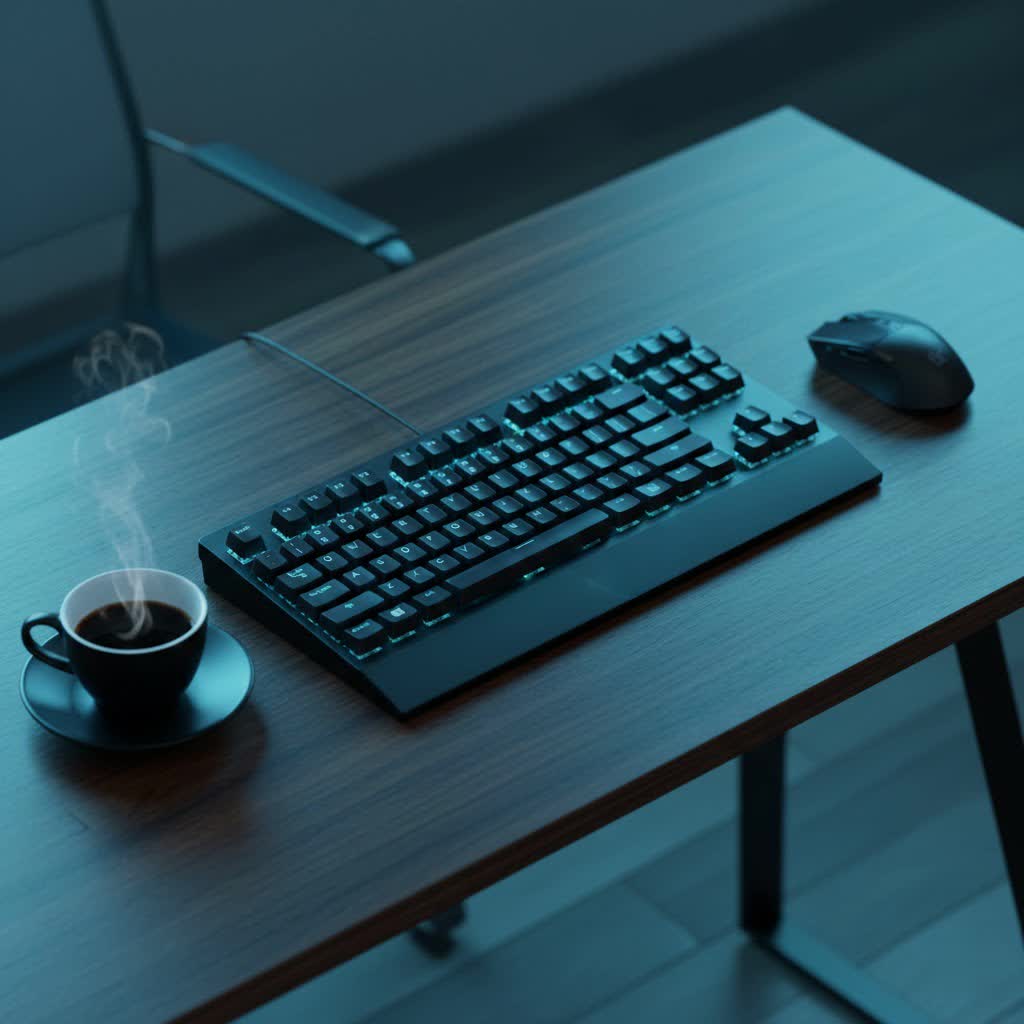
The Logitech MX Mechanical Keyboard represents a significant evolution in office-oriented input devices, distinguishing itself from traditional membrane or even standard-height mechanical keyboards. At its core, it’s a low-profile mechanical keyboard, meaning its switches and keycaps are designed to be shorter than conventional mechanical setups. This design choice contributes to a more ergonomic typing posture, reducing wrist strain during extended use.
Born from Logitech’s legacy of innovation, particularly within its MX Master series, this keyboard was developed to offer the beloved tactile feedback of mechanical switches without the bulk often associated with them. The primary components include durable low-profile Kailh Choc V2 switches, specially designed ABS keycaps with a soft, grippy coating, and a robust construction featuring an aluminum top plate and a solid plastic chassis. This thoughtful combination ensures both a satisfying typing feel and enduring quality, allowing users to feel every keystroke with precision and confidence.
Exploring the Low-Profile Kailh Switch Types
A key differentiator of the Logitech MX Mechanical Keyboard lies in its choice of low-profile Kailh Choc V2 mechanical switches. Logitech offers three distinct types, each catering to different preferences in sound and feel, ensuring that every user can find their perfect match for optimal productivity.
Linear Switches (Red)
Linear switches are characterized by their smooth, consistent keystroke from top to bottom, with no tactile bump or audible click. This uninterrupted travel makes them ideal for rapid, fluid typing.
- Characteristics: Light actuation force, smooth travel, no tactile feedback, quiet operation.
- Advantages: Fast actuation, excellent for rapid key presses, minimal noise, often preferred for gaming (though the MX Mechanical isn’t primarily a gaming keyboard, its linear option appeals to those who enjoy this feel for quick inputs).
- Disadvantages: Lack of tactile feedback means you might “bottom out” the keys more frequently, which some users find tiring.
- Ideal for: Individuals who prefer a light, unhindered keystroke, fast typists, and those in shared office spaces where noise is a concern.
|
Our Picks for the Best Mechanical Keyboard in 2026
As an Amazon Associate I earn from qualifying purchases.
|
||
| Num | Product | Action |
|---|---|---|
| 1 | MageGee Portable 60% Mechanical Gaming Keyboard, MK-Box LED Backlit Compact 68 Keys Mini Wired Office Keyboard with Red Switch for Windows Laptop PC Mac - Black/Grey |

|
| 2 | Wood Pattern Mechanical Keyboard Wireless & Bluetooth Brown Keyboard – RGB Backlit Hot-Swappable PBT Keycaps Aesthetic Keyboard for Mac, Windows, iOS & Android – Ergonomic Gaming & Office Keyboard |
|
| 3 | AULA F99 Wireless Mechanical Keyboard,Tri-Mode BT5.0/2.4GHz/USB-C Hot Swappable Custom Keyboard,Pre-lubed Linear Switches,RGB Backlit Computer Gaming Keyboards for PC/Tablet/PS/Xbox |
|
| 4 | Redragon Mechanical Gaming Keyboard Wired, 11 Programmable Backlit Modes, Hot-Swappable Red Switch, Anti-Ghosting, Double-Shot PBT Keycaps, Light Up Keyboard for PC Mac |
|
| 5 | Logitech MX Mechanical Wireless Illuminated Performance Keyboard, Tactile Quiet Switches, Backlit Keys, Bluetooth, USB-C, macOS, Windows, Linux, iOS, Android, Metal, Graphite |
|
| 6 | SteelSeries USB Apex 5 Hybrid Mechanical Gaming Keyboard – Per-Key RGB Illumination – Aircraft Grade Aluminum Alloy Frame – OLED Smart Display (Hybrid Blue Switch) |
|
| 7 | SOLAKAKA A99 Pro Mechanical Keyboard with LCD Screen & Metal Knob, Wireless Gaming Keyboard with BT5.0/2.4GHz/USB-C, Hot Swappable Creamy Keyboard, Gasket Structure, RGB Backlit, for Win/Mac |
|
| 8 | AULA F2088 Typewriter Style Mechanical Gaming Keyboard Wired,Blue Switches,Rainbow LED Backlit,Removable Wrist Rest,Media Control Knob,Retro Punk Round Keycaps,USB Wired Computer Keyboard |
|
| 9 | AULA F75 Pro Wireless Mechanical Keyboard,75% Hot Swappable Custom Keyboard with Knob,RGB Backlit,Pre-lubed Reaper Switches,Side Printed PBT Keycaps,2.4GHz/USB-C/BT5.0 Mechanical Gaming Keyboards |
|
| 10 | GravaStar Mercury V75 HE Keyboard, 75% Hall‑Effect Magnetic Switch Gaming Keyboard, 8000 Hz Polling, 0.005RT, Wired USB-C, RGB Backlit, Adjustable Actuation, Semi‑Aluminum Chassis-Stealth Black |
|
Tactile Quiet Switches (Brown)
Tactile switches provide a subtle bump in the keystroke that signals actuation without producing an audible click. Logitech’s “Tactile Quiet” variant is specifically engineered to minimize sound.
- Characteristics: Noticeable tactile bump at the actuation point, moderate actuation force, quiet operation.
- Advantages: Provides confirmation of keystroke registration, comfortable for long typing sessions, significantly quieter than clicky switches, making them suitable for office environments.
- Disadvantages: Some users might find the tactile bump less pronounced than on full-height tactile switches.
- Ideal for: Typists who value feedback without the noise, programmers, and general office use where precision and discretion are important. The tactile bump helps prevent accidental key presses and improves typing accuracy.
Clicky Switches (Blue)
Clicky switches offer both a tactile bump and a distinct audible “click” sound at the actuation point, providing a satisfying sensory experience for many typists.
- Characteristics: Pronounced tactile bump, audible click sound, moderate actuation force.
- Advantages: Clear and immediate feedback (both tactile and auditory) confirms keystroke, highly satisfying for many who enjoy the traditional mechanical keyboard experience.
- Disadvantages: Can be quite loud, making them less suitable for open-plan offices or quiet shared environments.
- Ideal for: Typists who love the classic mechanical keyboard sound and feel, and those who work in private settings where noise is not an issue.
| Switch Type | Feedback | Sound | Actuation Force (approx.) | Best For |
|---|---|---|---|---|
| Linear (Red) | Smooth, no bump | Quiet | Light | Fast typing, minimal distraction |
| Tactile Quiet (Brown) | Tactile bump, no click | Quiet | Medium | Balanced typing, office environments |
| Clicky (Blue) | Tactile bump, audible click | Loud | Medium | Enthusiastic typists, clear feedback |
Keycap Design and Materials
The keycaps of the Logitech MX Mechanical Keyboard are meticulously crafted to complement its low-profile mechanical switches and enhance the overall typing experience. They feature a flat profile with a slight indentation, reminiscent of laptop keycaps, which can make the keys feel closer together, promoting faster finger travel.
- Material: The keycaps are made from ABS plastic, but they come with a soft coating that adds a pleasant grip and feel to the fingertips. While ABS keycaps are known to show finger oils over time, this coating helps mitigate the slickness often associated with raw ABS.
- Profile: The low-profile design means the keycaps are shallower compared to standard mechanical keyboards, contributing to the keyboard’s overall sleek aesthetic and ergonomic advantage. Their consistent height across the board creates a flat typing surface, differing from the curved profile found on many traditional mechanical keyboards.
- Dual Color Keycaps: Logitech utilizes dual-color keycaps to aid in finger orientation and maintain typing flow, a subtle yet effective design choice for productivity.
- Customization Limitations: Due to their specific low-profile design and unique stem, these keycaps are not easily interchangeable with standard aftermarket keycaps, limiting customization options for enthusiasts.
Logitech MX Mechanical vs. MX Keys: A Head-to-Head
For those familiar with Logitech’s productivity lineup, a common question arises: how does the MX Mechanical compare to its popular sibling, the MX Keys? Both keyboards target the same professional audience, but they offer fundamentally different typing experiences.
The Logitech MX Keys features scissor-switch (membrane) keys, which provide a very stable, short-travel, and quiet typing experience, akin to premium laptop keyboards. Its concaved spherical keycaps are designed for fingertip comfort and accuracy. It typically connects via Logitech Unifying Receiver or Bluetooth.
In contrast, the Logitech MX Mechanical Keyboard leverages low-profile mechanical switches (Kailh Choc V2) across its three variants. This translates to a more pronounced tactile or clicky feedback, deeper key travel (though still low-profile), and a generally more engaging, responsive feel. The MX Mechanical connects via Logi Bolt USB Receiver or Bluetooth LE and boasts adjustable tilt legs, a feature absent from the MX Keys.
| Feature | Logitech MX Mechanical Keyboard | Logitech MX Keys |
|---|---|---|
| Switch Type | Low-profile Mechanical (Kailh: Linear, Tactile Quiet, Clicky) | Scissor-switch (membrane) |
| Typing Feel | Distinct tactile bump or click, longer travel | Silent, stable, short travel, laptop-like |
| Noise Level | Varies (Quiet Brown to Loud Blue) | Very Quiet |
| Connectivity | Logi Bolt USB Receiver, Bluetooth LE | Logitech Unifying Receiver, Bluetooth |
| Keycaps | Low-profile ABS with soft coating | Spherical dish-shaped, full-height |
| Adjustable Angle | Yes, with adjustable tilt legs | No |
| Price Point | Generally higher | Generally lower |
| Target User | Those seeking mechanical feedback for productivity | Those preferring a quiet, laptop-like typing experience |
While the MX Keys excels in silent operation and a streamlined profile, the MX Mechanical caters to users who crave the distinct feedback and durability of mechanical switches within a productivity-focused, low-profile design. Your choice ultimately hinges on your personal preference for typing feel and sound.
Your Ultimate Buying Guide for the Logitech MX Mechanical Keyboard
Choosing the right keyboard is a personal journey, especially with a premium device like the Logitech MX Mechanical. Here’s a comprehensive guide to help you make an informed decision:
1. Identify Your Needs
- Productivity Powerhouse: If your work involves extensive typing, coding, or data entry, the tactile feedback of mechanical switches can significantly improve typing speed and accuracy while reducing fatigue. The “Tactile Quiet” brown switches are particularly well-suited for this.
- Environment: Consider your workspace. If you’re in a shared office, the “Tactile Quiet” (Brown) or “Linear” (Red) switches are advisable to avoid disturbing colleagues. “Clicky” (Blue) switches are best reserved for private offices or home use.
- Gaming vs. Work: While it offers mechanical switches, the MX Mechanical is primarily designed for productivity. For competitive gaming, dedicated gaming keyboards might offer features like higher polling rates or specific macro keys that the MX Mechanical doesn’t emphasize.
2. Set Your Budget
The Logitech MX Mechanical Keyboard sits at a premium price point, reflecting its build quality, features, and brand reputation. Expect to invest in the range of $150-$170 for the full-size version and slightly less for the Mini. Consider this an investment in a durable tool designed for long-term comfort and efficiency.
3. Key Factors to Consider
- Switch Type: This is arguably the most crucial decision. If you can, try out keyboards with linear, tactile, and clicky switches before committing.
- Linear (Red): Smooth, fast, quiet.
- Tactile Quiet (Brown): Feedback without loud click, balanced.
- Clicky (Blue): Audible click, satisfying feedback, louder.
- Layout:
- Full-size: Includes a number pad, essential for those who frequently work with numbers or spreadsheets.
- Mini: A more compact, tenkeyless design, ideal for smaller desks or users who prioritize mouse space and portability. The Mini version places your mouse hand in a more natural position by reducing the overall keyboard width.
- Connectivity: The keyboard offers seamless connectivity via Logi Bolt USB receiver or Bluetooth LE, allowing connection to up to three devices with easy switching. Ensure your devices are compatible with either of these options.
- Build Quality: With an aluminum top plate and sturdy plastic chassis, the MX Mechanical boasts excellent build quality designed for longevity.
- Software Customization: Leverage the Logi Options+ software to customize Fn keys, assign backlighting effects, and enable Flow for cross-computer control. This software unlocks the full potential of the keyboard, tailoring it to your unique workflow.
4. Where to Buy
Purchase directly from Logitech’s official website for the latest models and warranty. Reputable electronics retailers and authorized dealers are also reliable sources. Always ensure you are buying from a trusted vendor.
Essential Care: Cleaning and Maintenance for Your Logitech MX Mechanical Keyboard
Proper care can significantly extend the life and maintain the performance of your Logitech MX Mechanical Keyboard. Its robust build, while durable, benefits from regular attention.
How to Clean Your Mechanical Keyboard
- Unplug/Turn Off: Always disconnect the keyboard from your computer or switch it off before cleaning to prevent accidental inputs or damage.
- Remove Loose Debris: Turn the keyboard upside down and gently shake it to dislodge any crumbs or dust caught between the keycaps. A can of compressed air is highly effective for blasting away stubborn debris from crevices.
- Wipe Down Keycaps: Use a microfiber cloth lightly dampened with isopropyl alcohol (70% or higher) or a gentle electronics cleaner. Avoid directly spraying liquid onto the keyboard. Carefully wipe each keycap, paying attention to areas prone to finger oil buildup. The MX Mechanical’s ABS keycaps, despite their coating, can still show oils, so regular wiping is beneficial.
- Clean the Frame: Use the same dampened cloth to wipe down the aluminum top plate and plastic chassis.
- Avoid Submerging: Never immerse the keyboard in liquid or use harsh chemical cleaners, as this can damage the internal components and switch mechanisms.
Battery Life and Smart Illumination
The Logitech MX Mechanical Keyboard features smart illumination, where backlighting adjusts to ambient light and turns on when your hands approach. This feature is designed to conserve battery life.
- Optimize Settings: Use the Logi Options+ software to fine-tune backlight brightness and sleep settings to your preference. Turning off backlighting will significantly extend battery life to up to 10 months, compared to 15 days with backlighting enabled.
- Regular Charging: Charge the keyboard using the included USB-C cable. A quick 15-minute charge can provide a full day of non-stop performance, and you can continue to use the keyboard wirelessly while it charges.
Regular cleaning and mindful use of its smart features will ensure your Logitech MX Mechanical Keyboard remains a reliable and enjoyable tool for years to come.
Conclusion
The Logitech MX Mechanical Keyboard stands as a testament to Logitech’s commitment to innovation in productivity peripherals. By integrating the satisfying feedback of low-profile mechanical switches with the multi-device connectivity and smart features of the MX series, it offers a typing experience that is both engaging and highly efficient. Whether you opt for the quiet tactility of the brown switches or the swift responsiveness of the linear reds, this keyboard is engineered to elevate your daily work, transforming mundane tasks into a more enjoyable and productive endeavor. It’s a premium investment for those who spend countless hours at their desk, providing comfort, precision, and an undeniable sense of quality. What aspect of a mechanical keyboard do you value most in your workflow?
Frequently Asked Questions
Is the Logitech MX Mechanical Keyboard suitable for gaming?
While the Logitech MX Mechanical Keyboard utilizes mechanical switches that offer responsiveness beneficial for gaming, it is primarily designed and optimized for productivity and office use. Its low-profile design, focus on ergonomic comfort, and lack of dedicated gaming features (like ultra-high polling rates or extensive macro key banks often found in gaming keyboards) make it less ideal for competitive gaming compared to specialized gaming mechanical keyboards. However, for casual gaming, it provides a very capable and satisfying experience.
Can I customize the keycaps or switches on the Logitech MX Mechanical Keyboard?
The Logitech MX Mechanical Keyboard uses low-profile Kailh Choc V2 switches, which have a different stem design than standard Cherry MX-style switches. This means it is not compatible with most aftermarket keycaps. Additionally, the switches are soldered onto the PCB, meaning they are not hot-swappable and cannot be easily changed or replaced by the user. Customization is primarily limited to software adjustments via Logi Options+.
